4. Tools
Tools groups two utility features that are used during setup and external access rather than daily sales work.
4.1 EDF Activation
EDF Activation is used to register and activate the fiscal hardware device (the Electronic Fiscal Device) that is physically connected to the POS system. This step is required before the app can sign and certify transactions in compliance with fiscal regulations.
The app communicates with the fiscal device over the local network using the device IP configured in the setup. All communication is encrypted using an activation key. When activation completes successfully, the device returns a set of merchant data that is cached in the app and used to stamp every sale receipt.
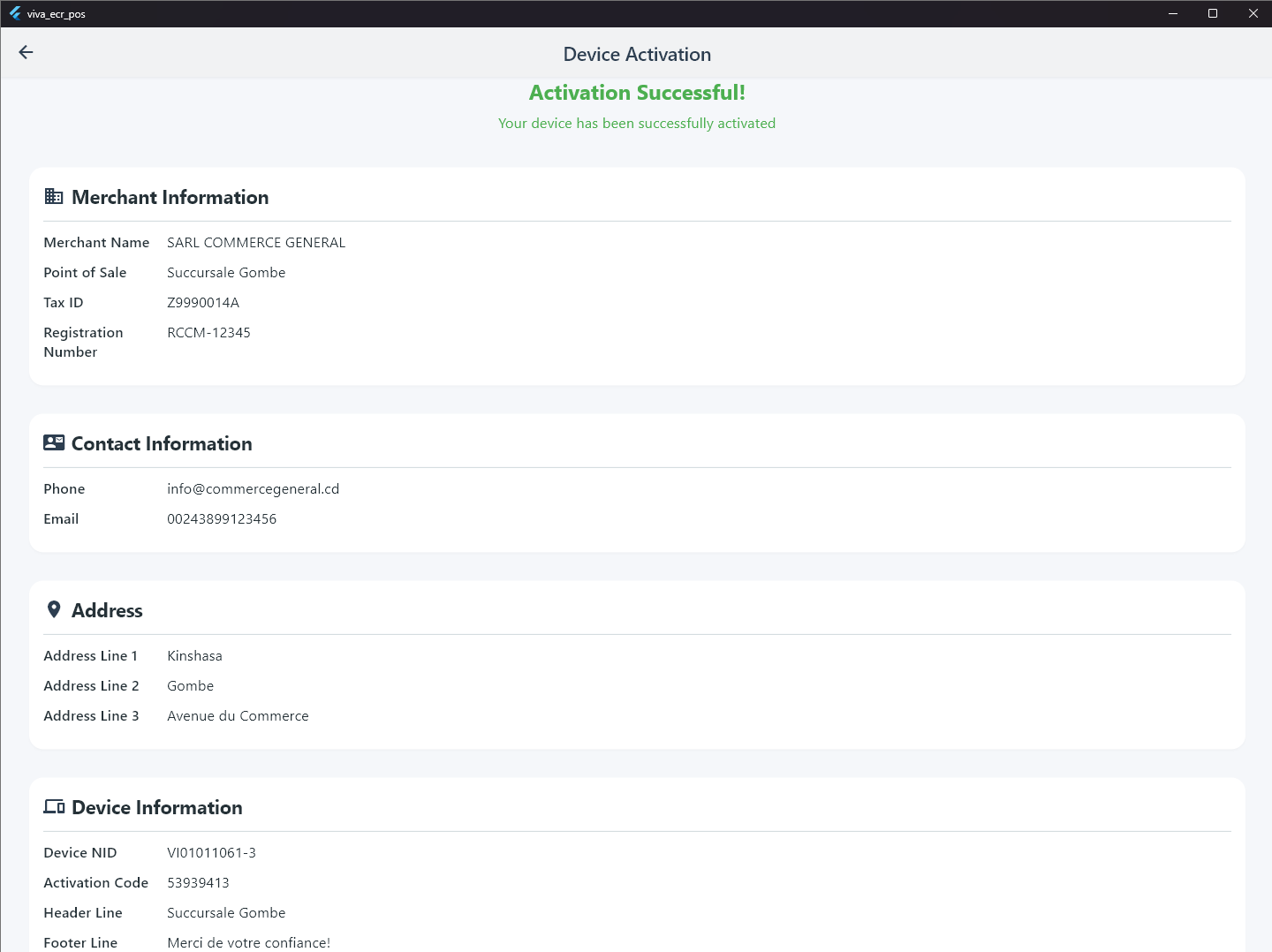
What activation retrieves from the device:
- Merchant name, point of sale, tax ID, and registration number
- Merchant address and contact details
- Device NID and activation code
- Receipt header and footer lines
- An encryption key used for signing subsequent transactions
After a successful activation, a Change Report action becomes available on the same screen. Running the Change Report fetches the tax rate table from the fiscal device and maps VAT categories (TA through TP) for use when signing sales.
How to use:
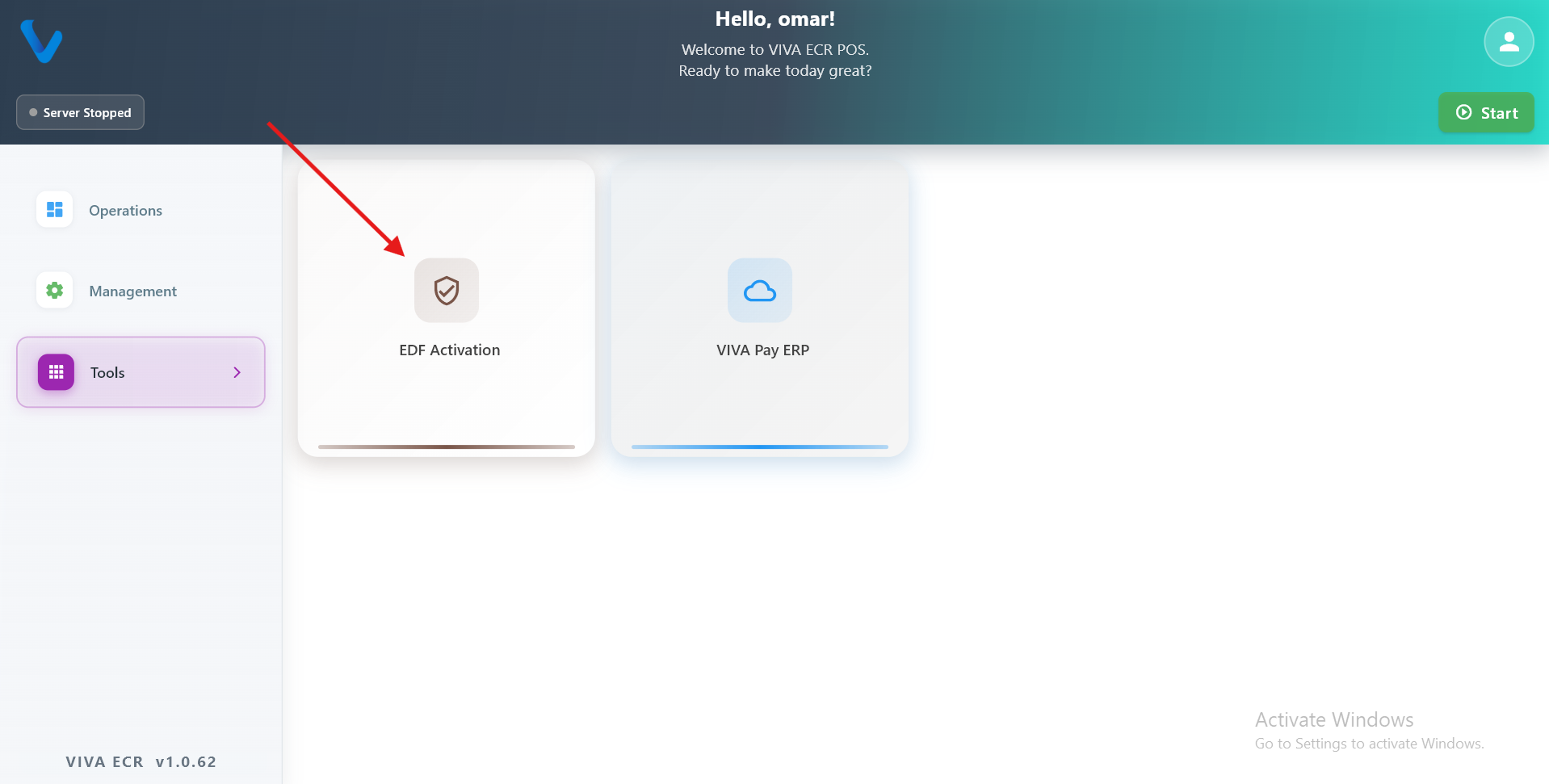
- Open Tools from the Management menu.
- Tap EDF Activation.
- Tap Activate Device to send the activation request to the connected fiscal device.
- Wait for the response. The app will show a success screen with the retrieved merchant data if activation is complete.
- After activation, tap Change Report to load the tax table from the device.
Activation response reference
| Scenario | success | isActivated | Error Code | Recommended action |
|---|---|---|---|---|
| Device activated, data retrieved | true | true | — | Data is cached; proceed normally |
| Device not yet activated | false | false | NOT_ACTIVATED | Show "device not activated" message to operator |
| Internal server error | false | false | INTERNAL_ERROR | Retry after a delay; contact support if the error persists |
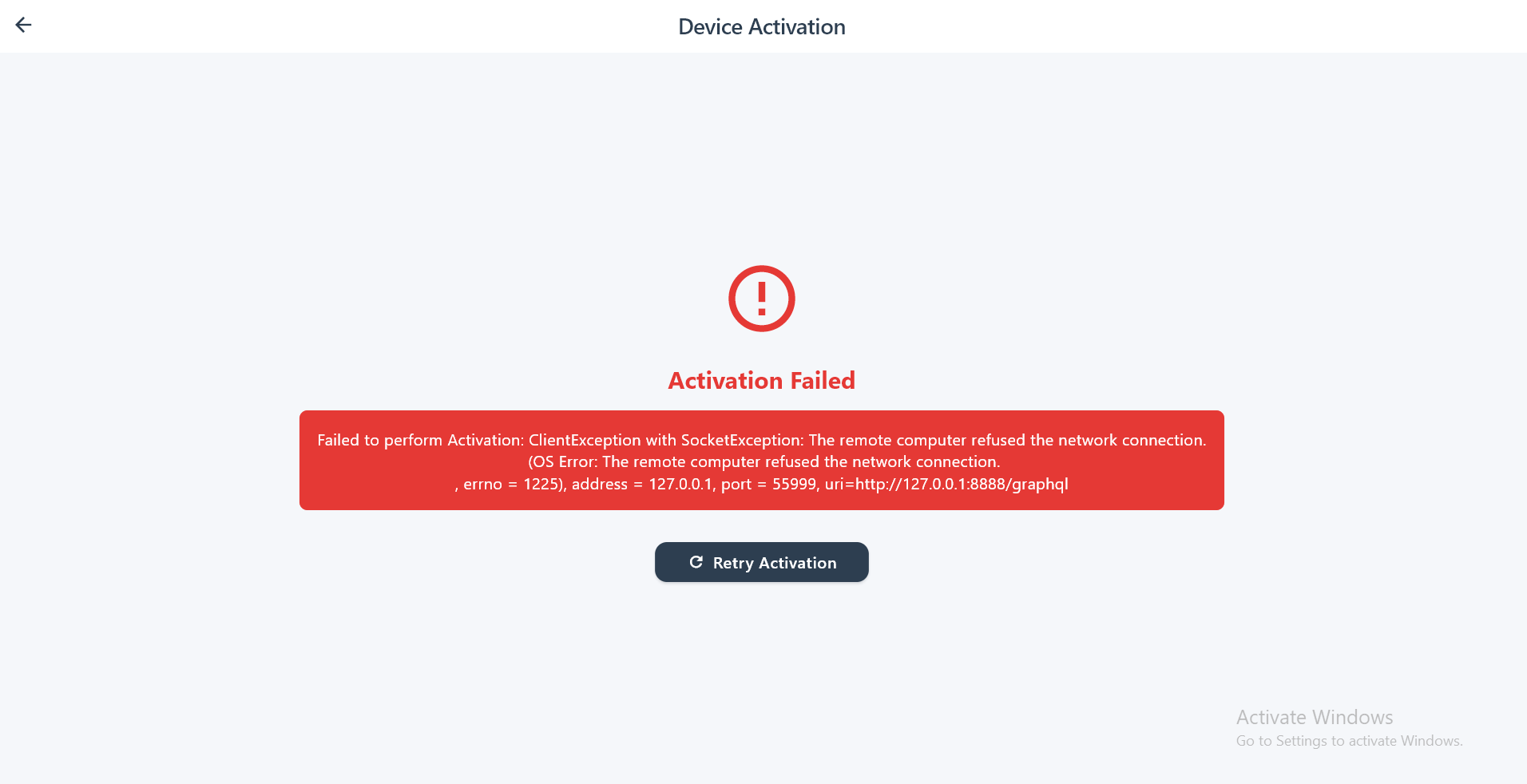
| Network unreachable | HTTP error / timeout | — | — | Check device IP, cable, and Wi-Fi connection |
If activation fails, the error screen shows the reason and a Retry Activation button. The app will not be able to sign fiscal transactions until activation is completed successfully.
4.2 VIVA Pay ERP
VIVA Pay ERP opens the VIVA Pay web platform directly inside the app. It allows the operator to access the back-office system, review business data, and manage account settings without leaving the device.
How to use:
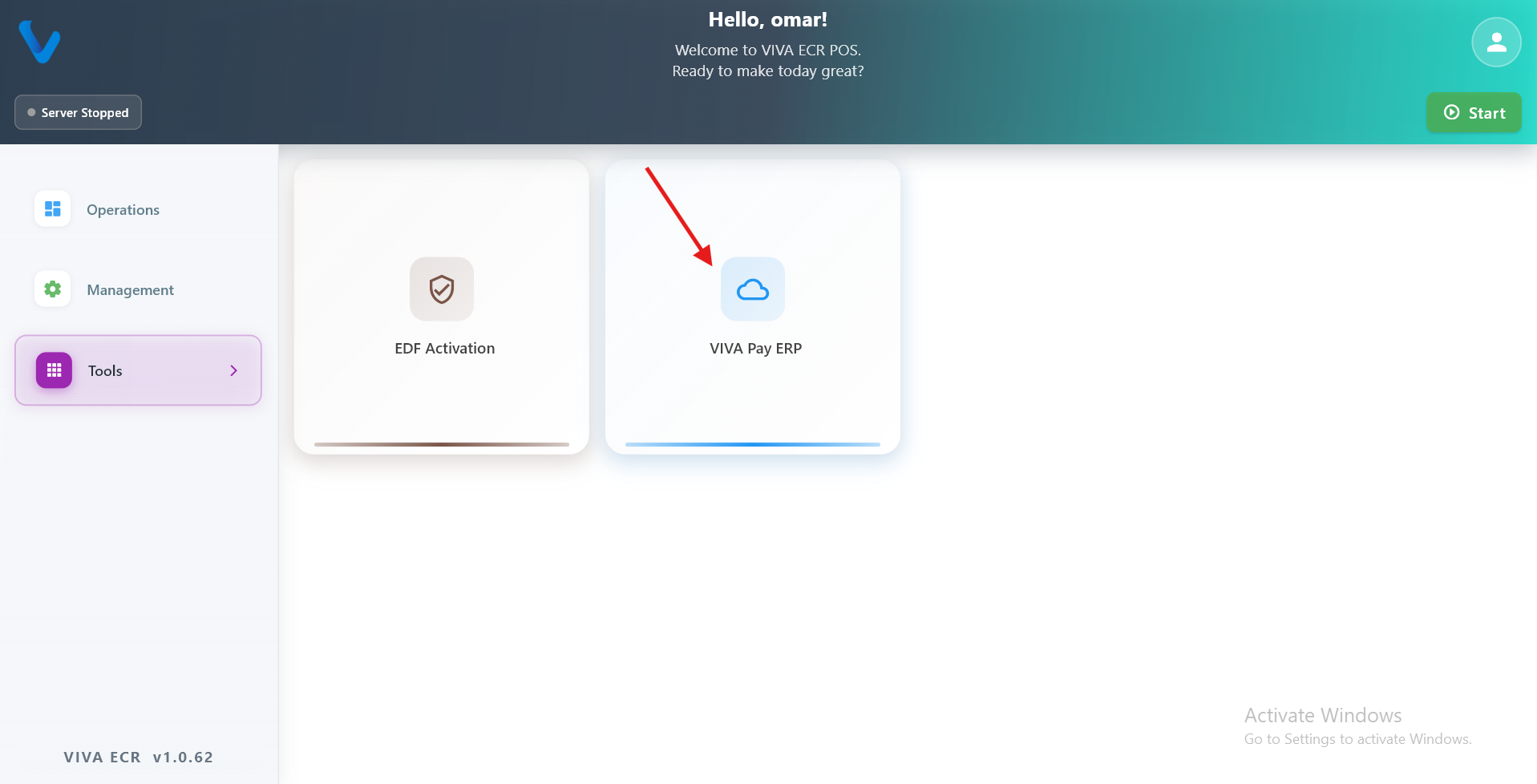
- Open Tools from the Management menu.
- Tap VIVA Pay ERP.
- The web platform opens in a built-in browser view.
- Log in with your VIVA Pay credentials.
- Use the back navigation to return to the POS app when done.