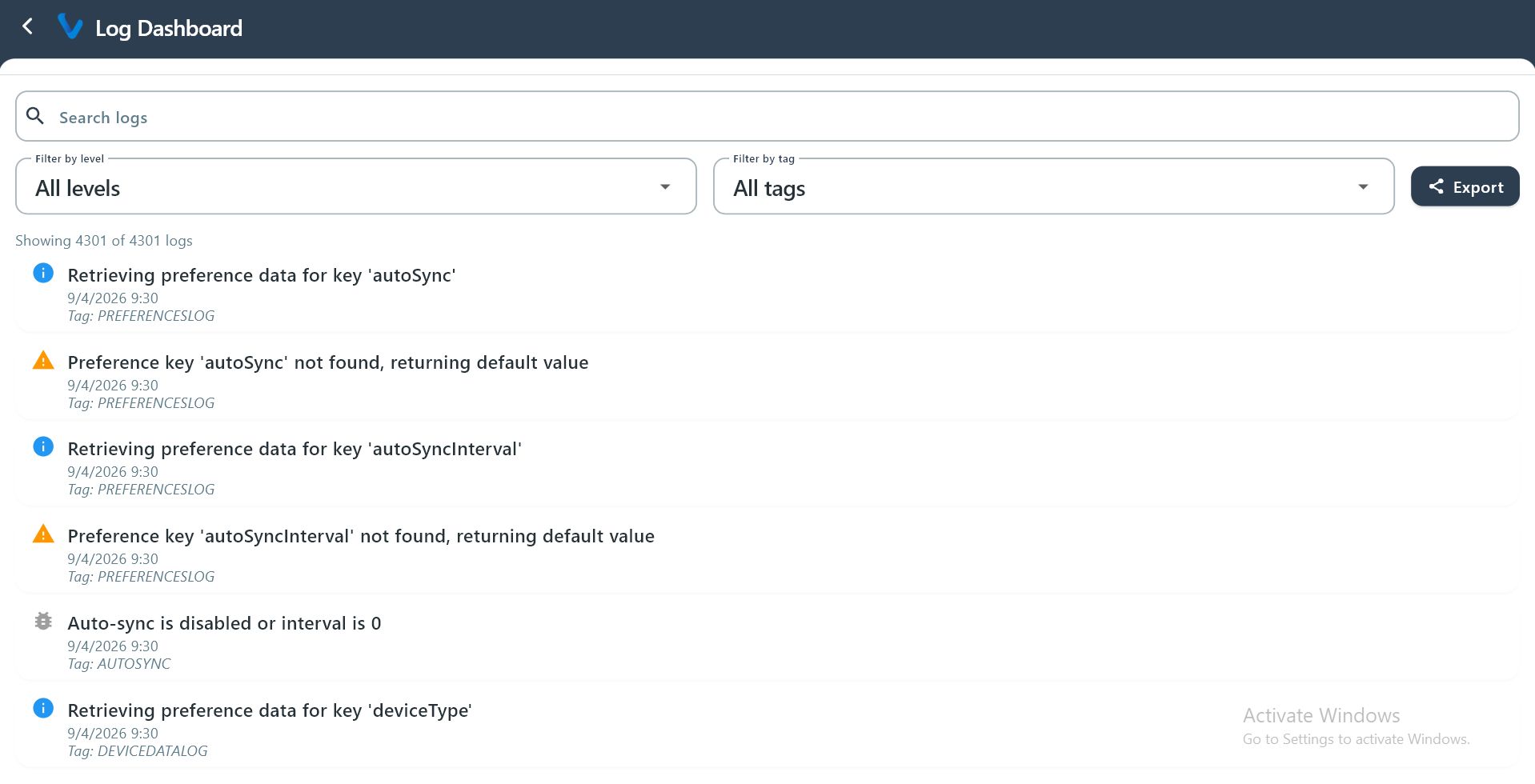
3. Management Section
This section is mainly for configuration, supervision, and control tasks.
3.1 Items
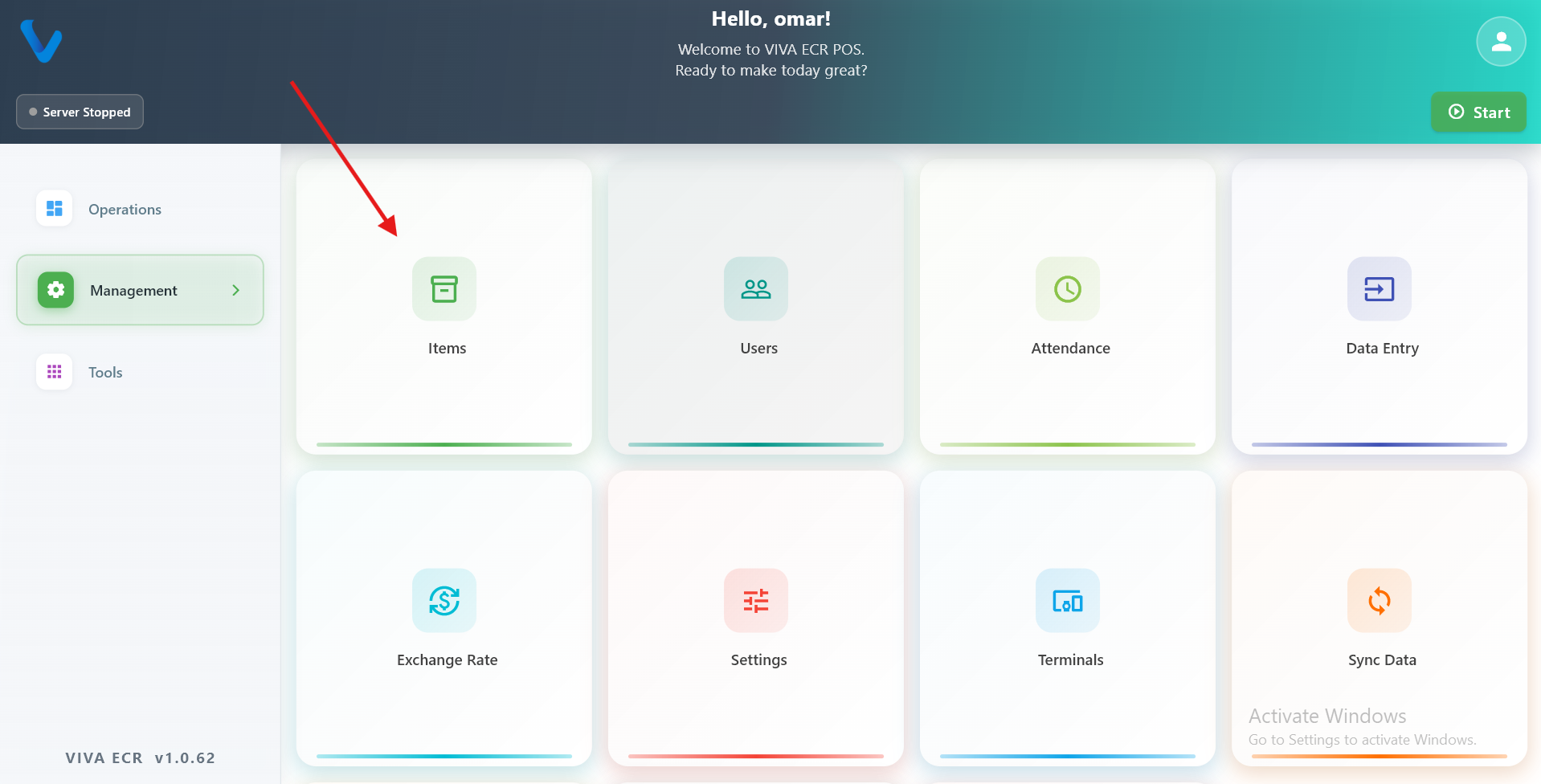
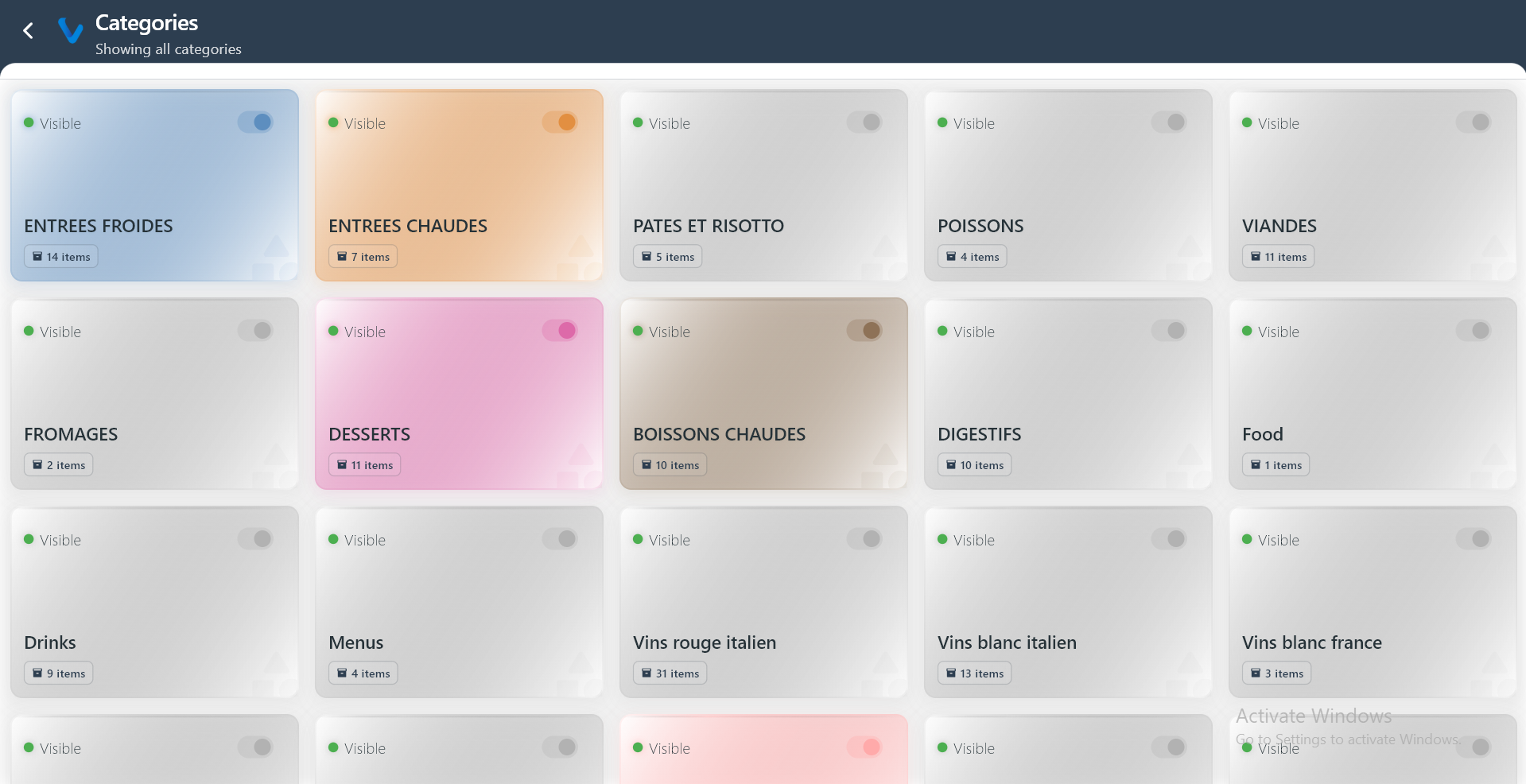
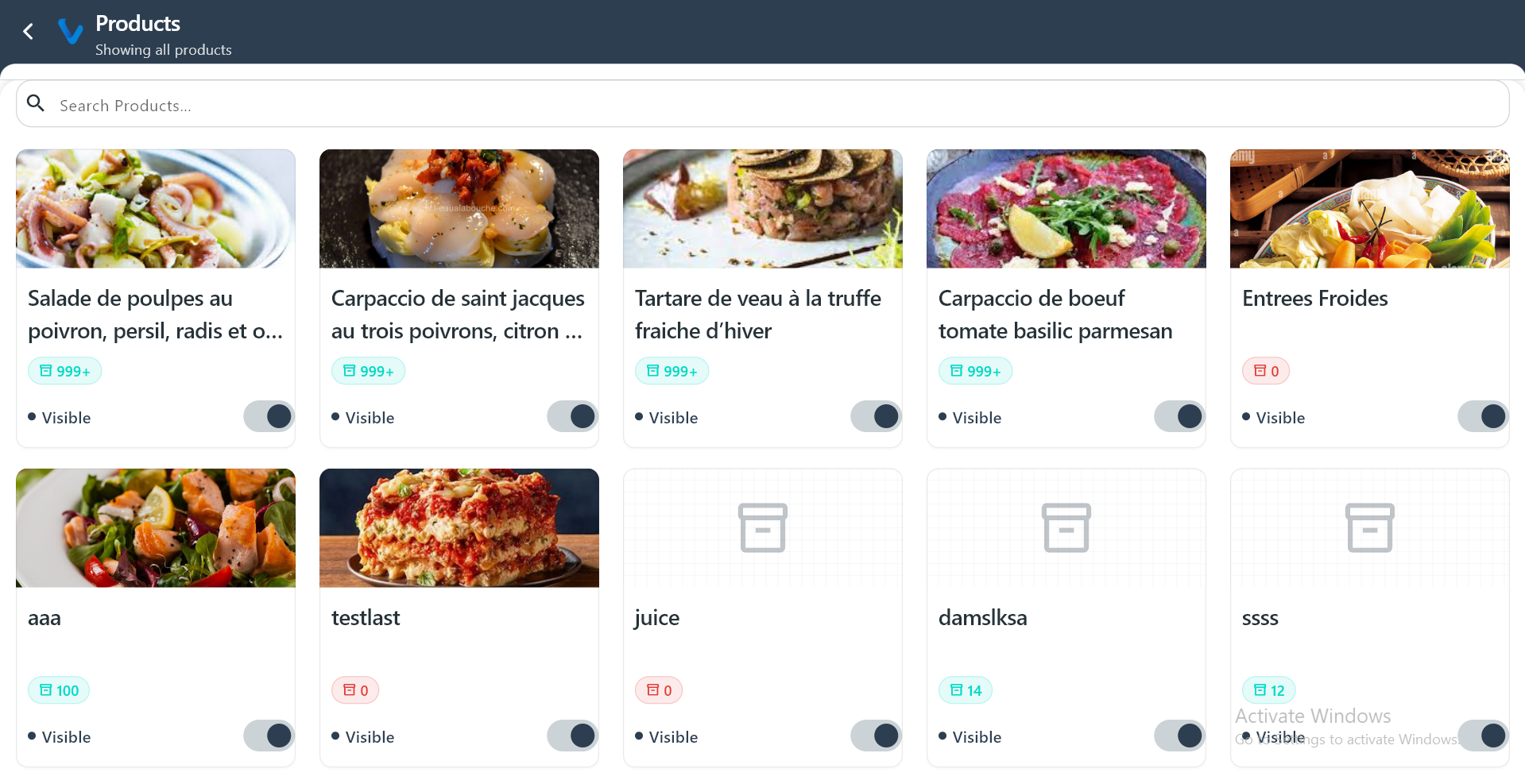
Items helps you view and manage products, categories, and visibility in the catalog.
What you can do:
- Search products quickly
- Review stock and visibility
- Open product lists by category
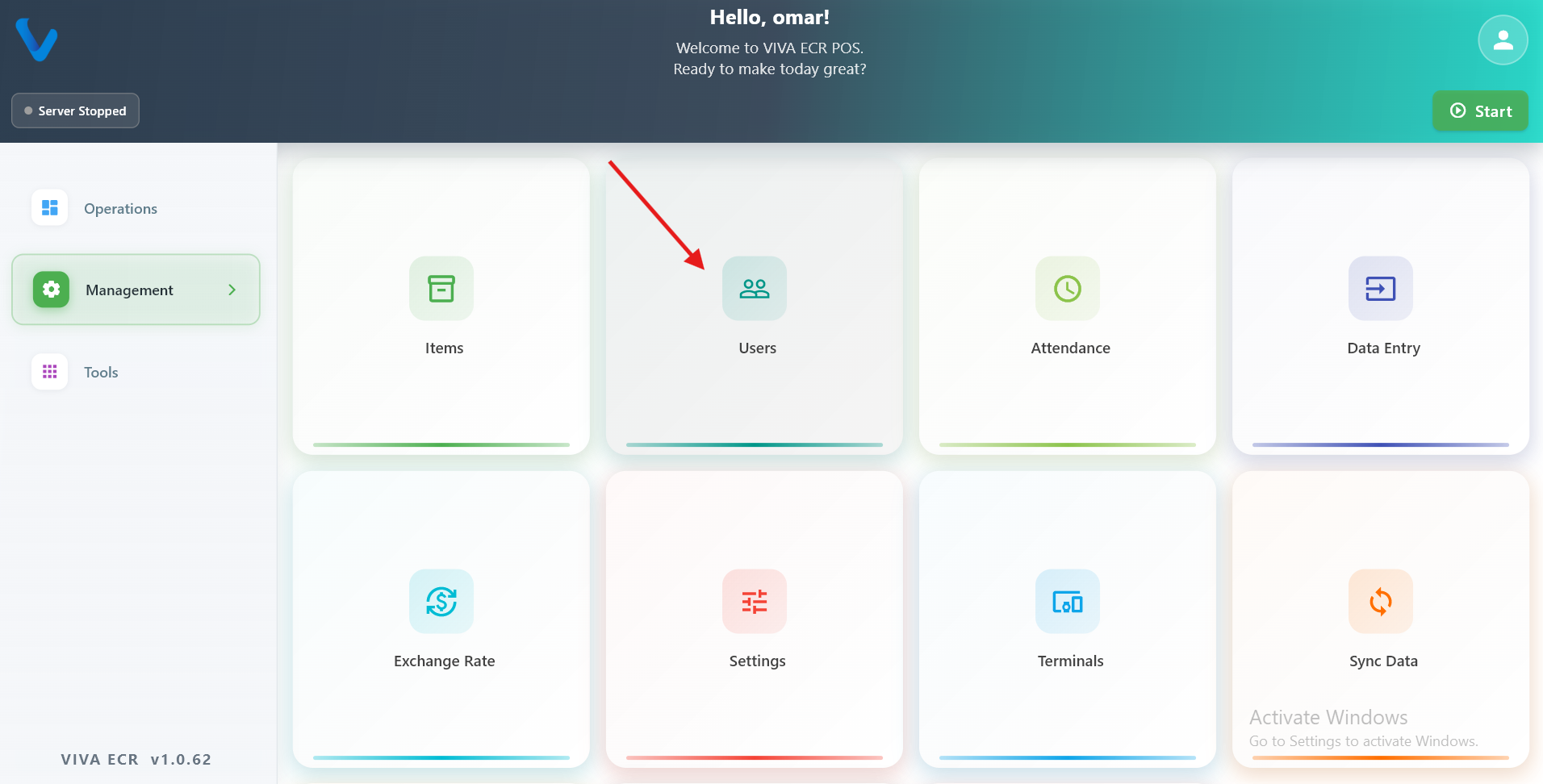
3.2 Users
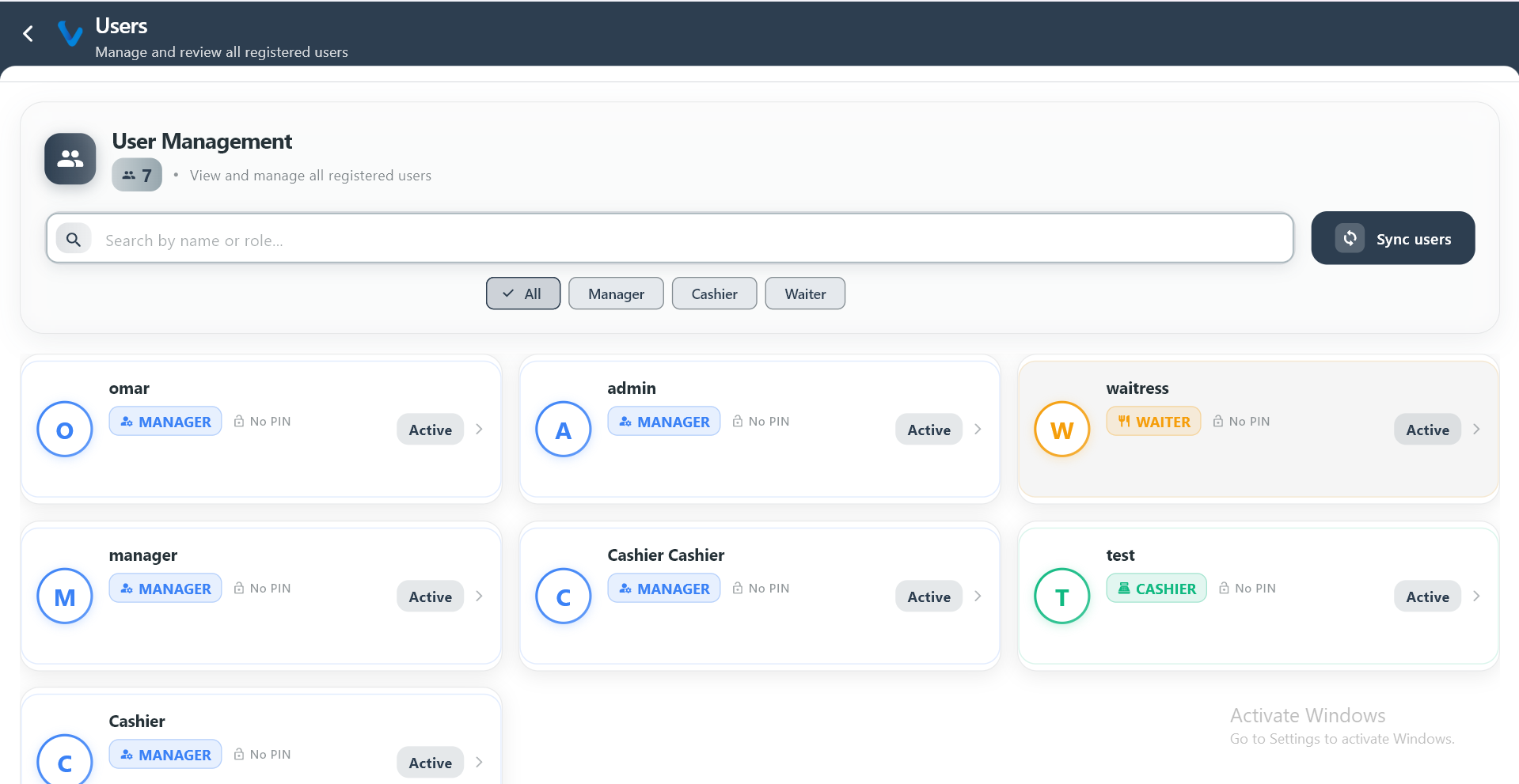
Users is where registered users are reviewed and managed.
What you can do:
- Search users by name
- Filter by role
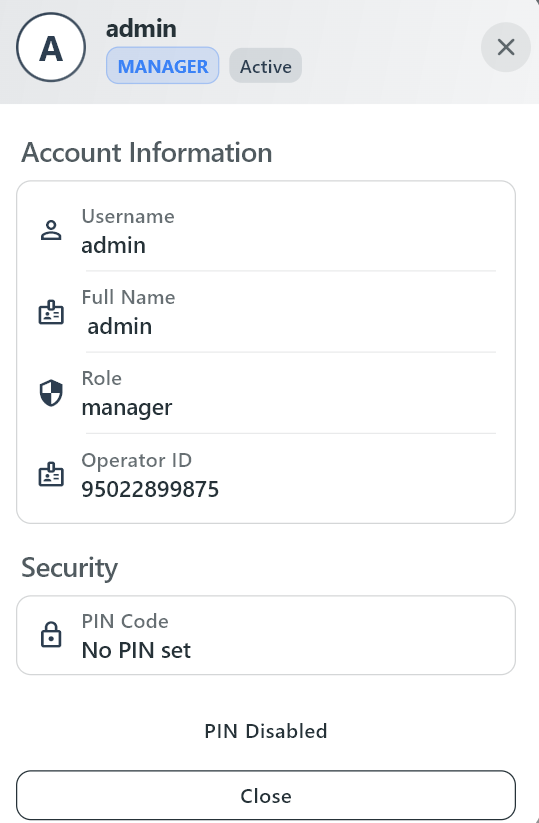
- Open user profile details
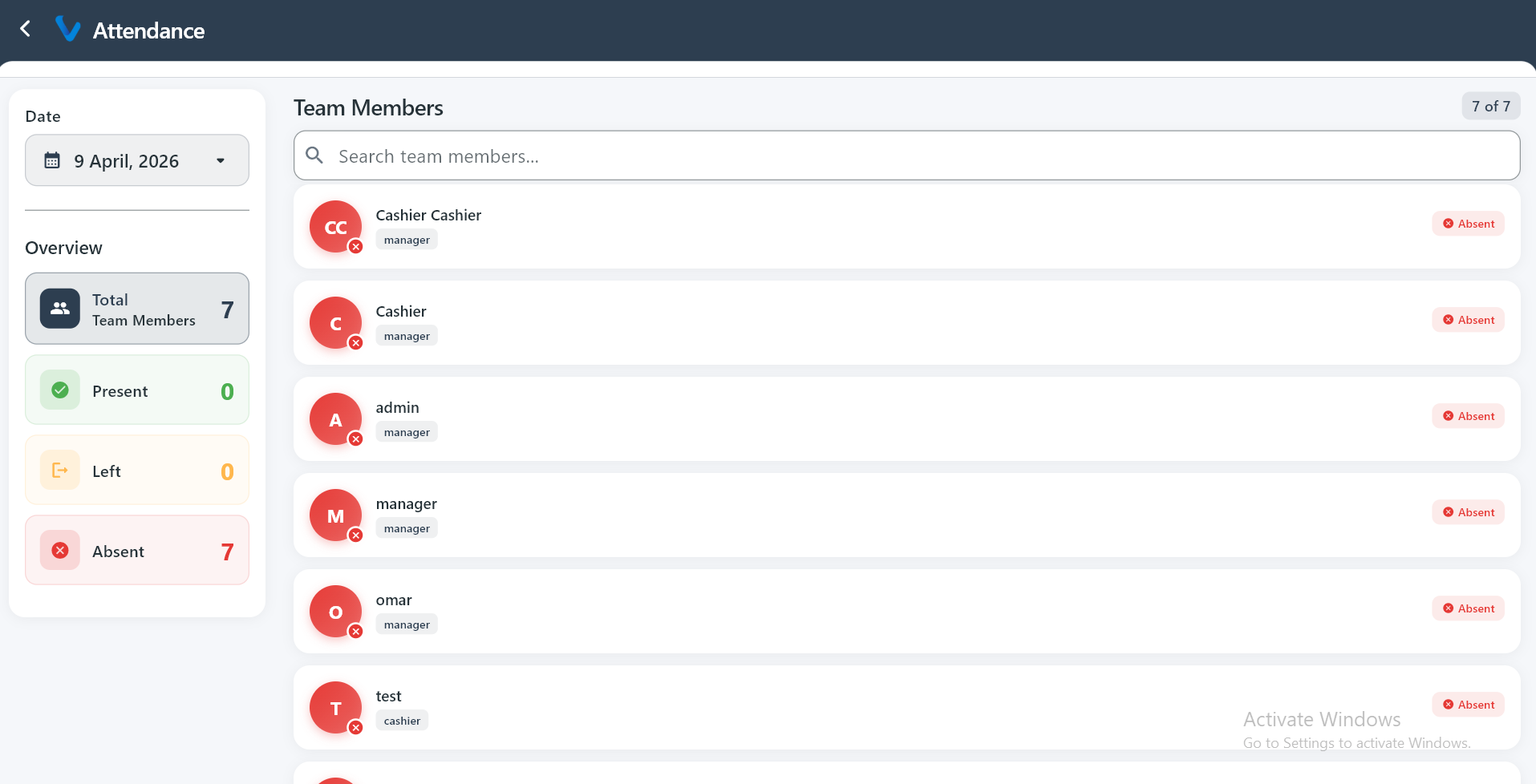
3.3 Attendance
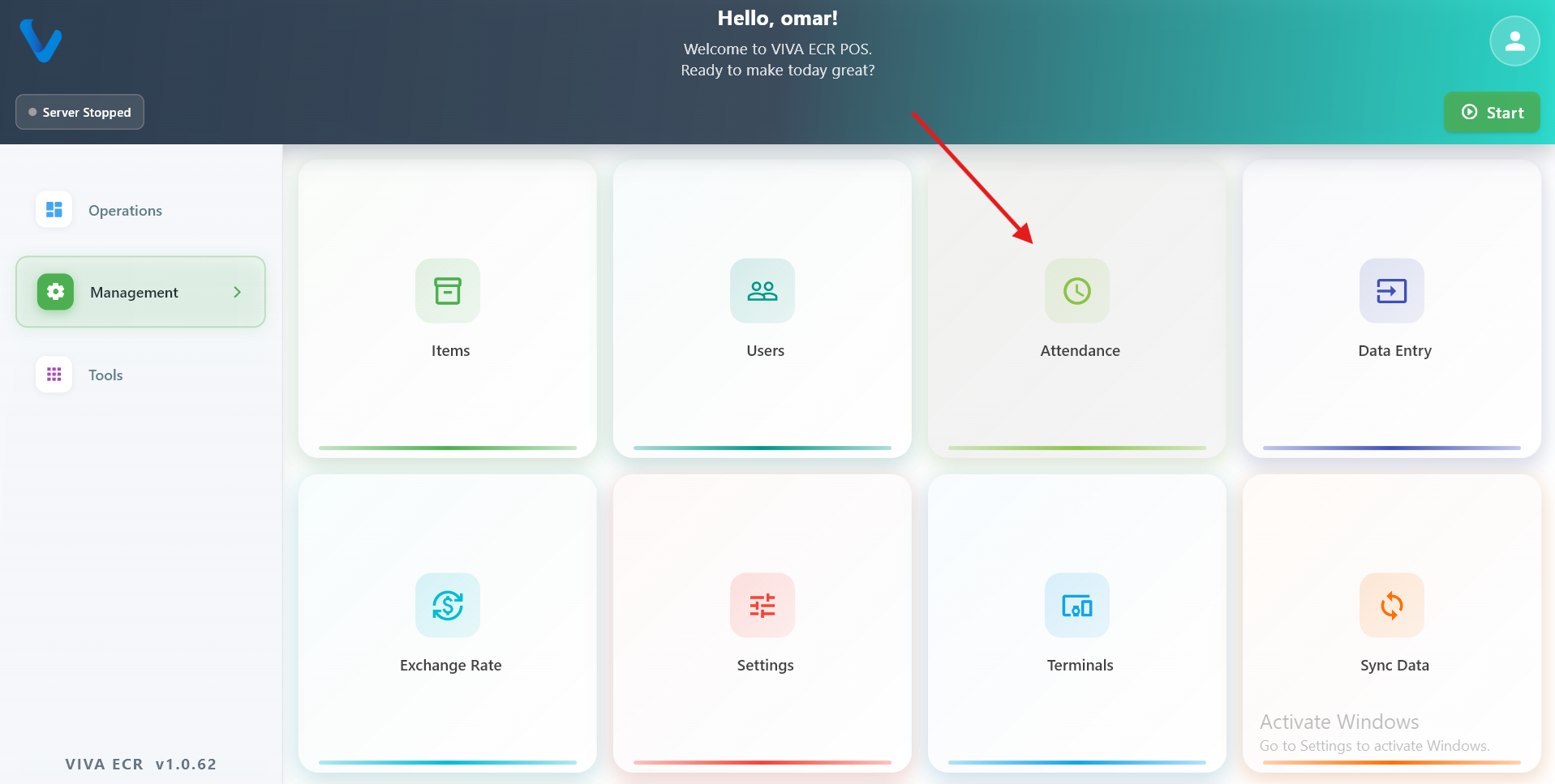
Attendance shows team presence for a selected day so managers can quickly check who is working.
What you can do:
- See Present, Left, and Absent counts
- Review staff attendance status
3.4 Data Entry
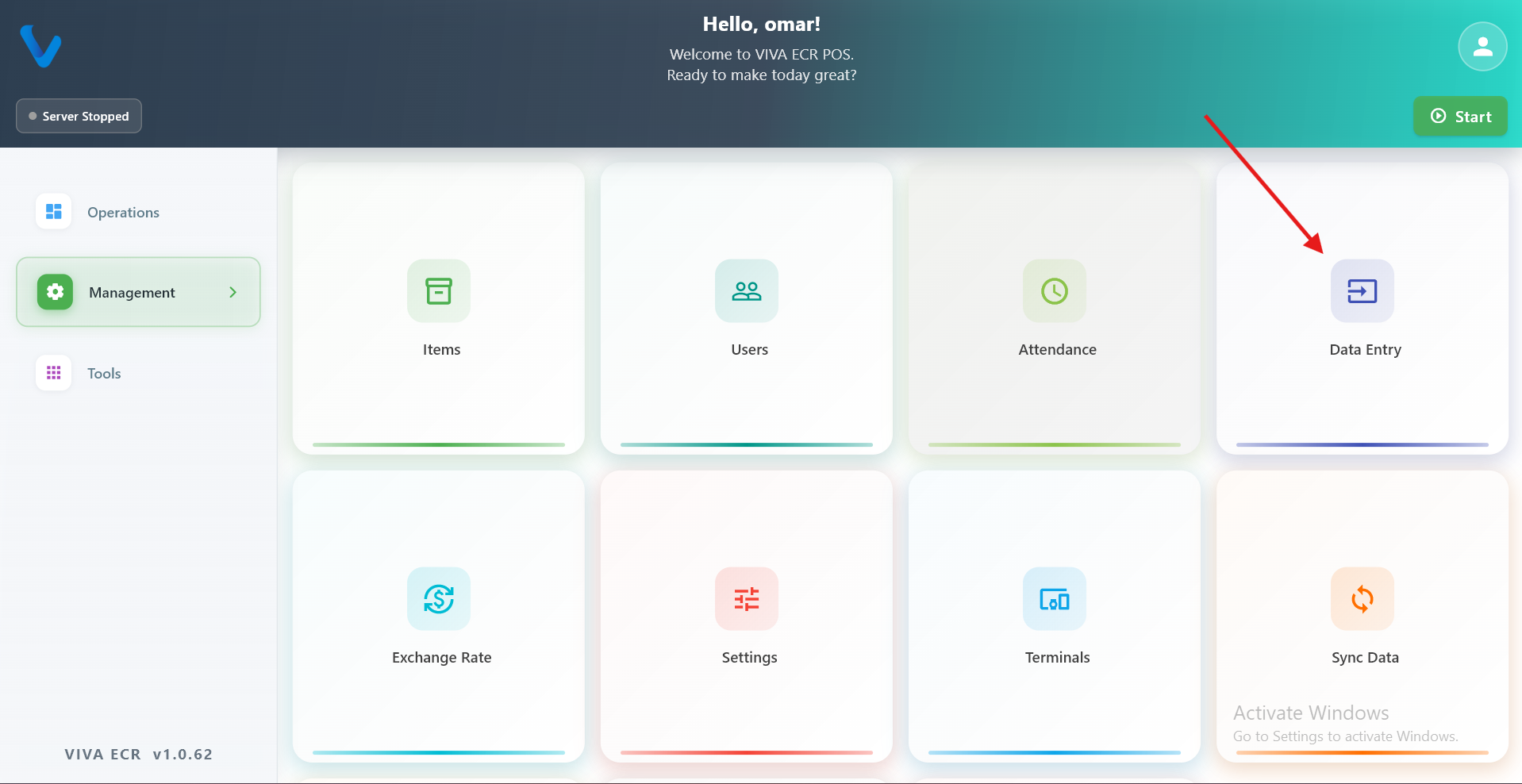
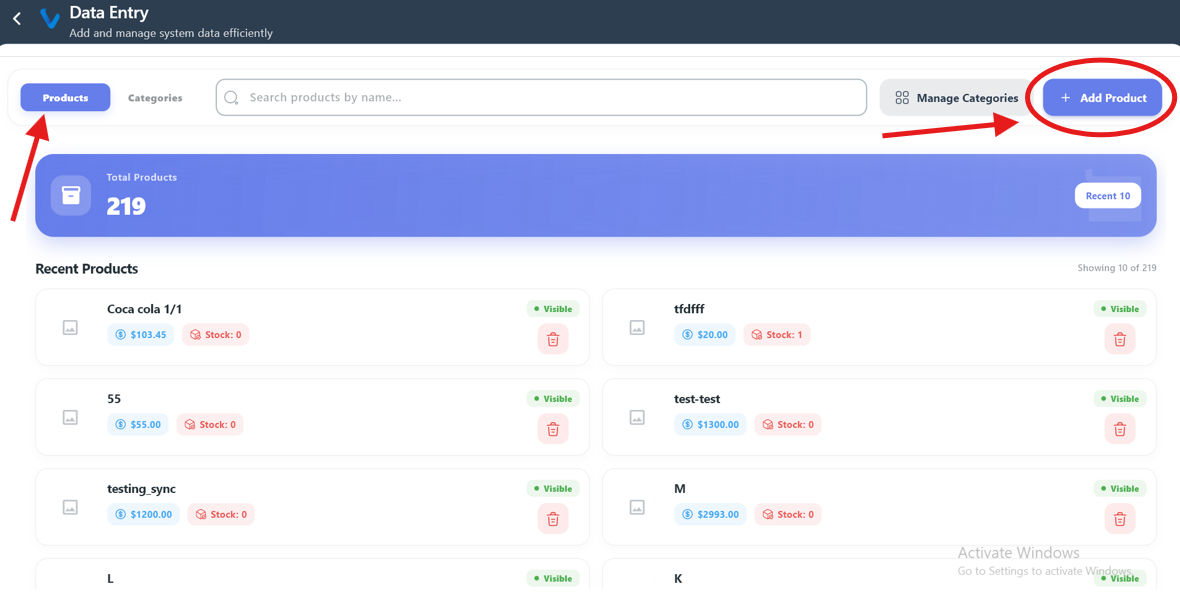
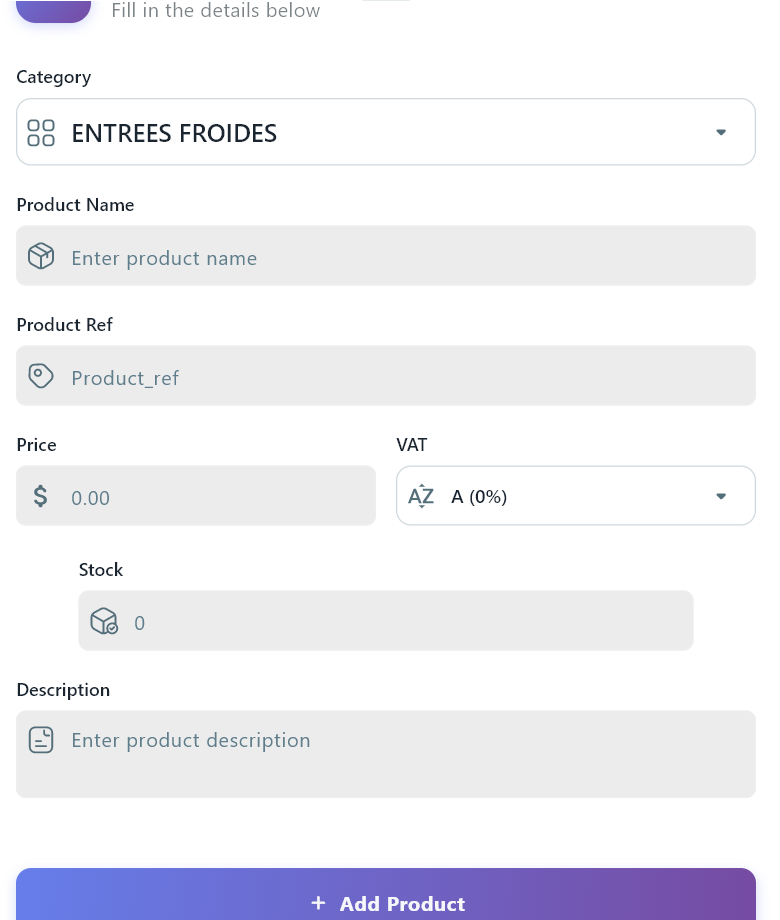
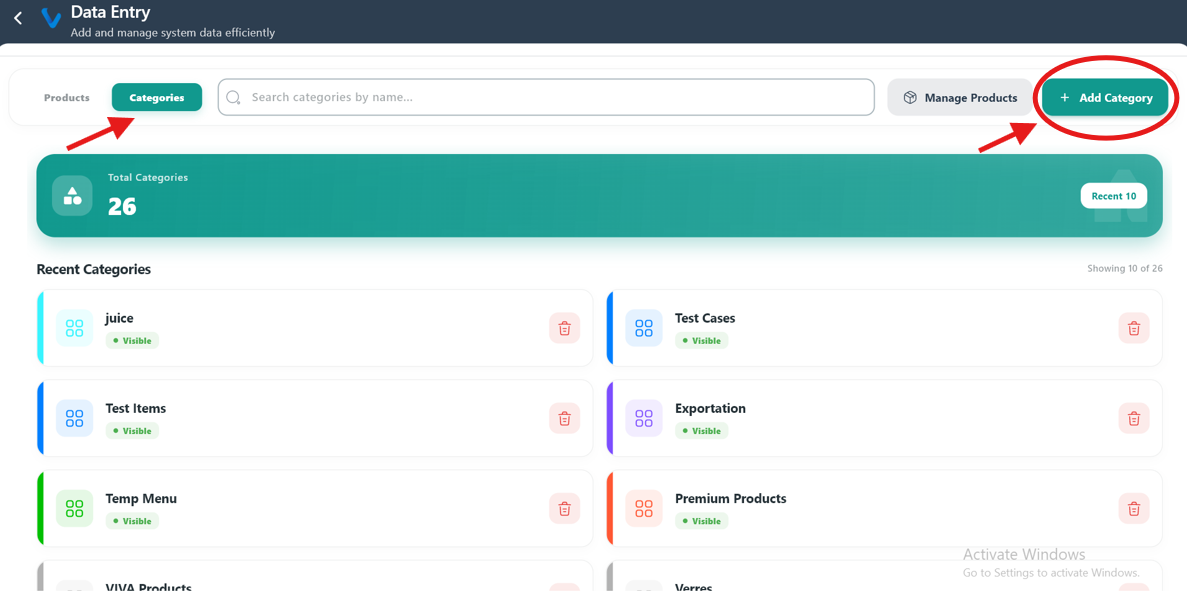
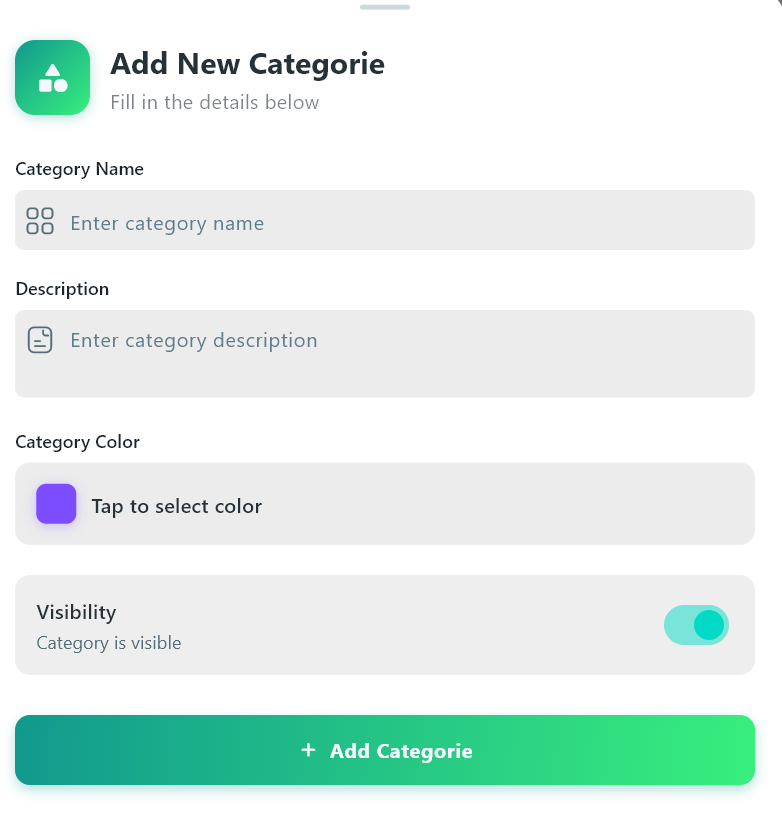
Data Entry is used to manage products and categories from one place.
What you can do:
- Add new products
- Add new categories
- Search and manage existing records
3.5 Exchange Rate
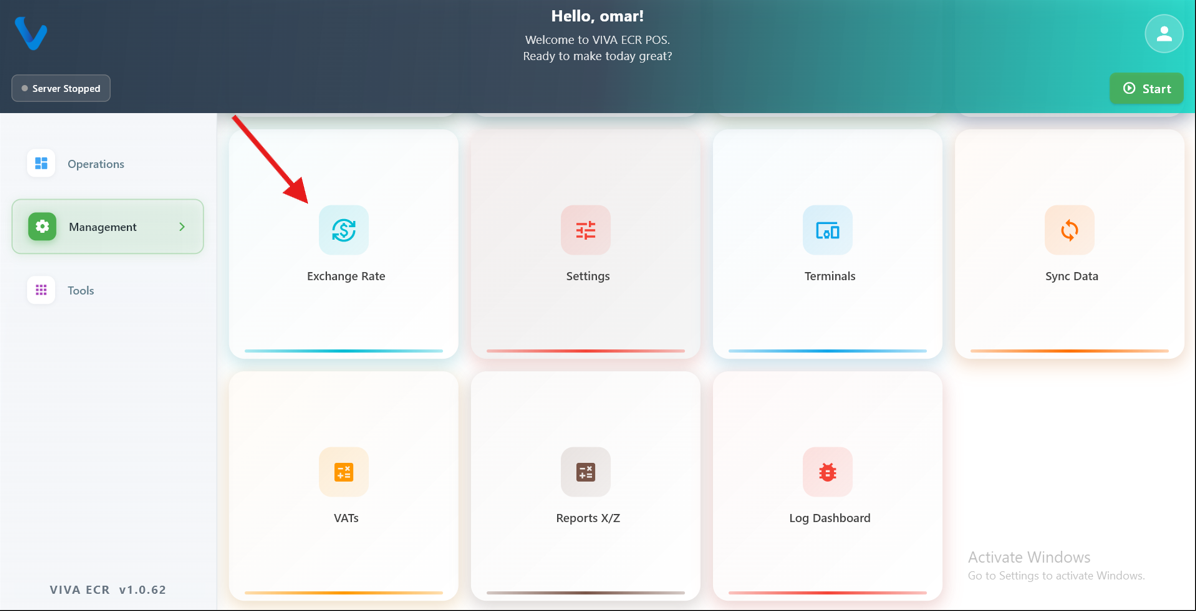
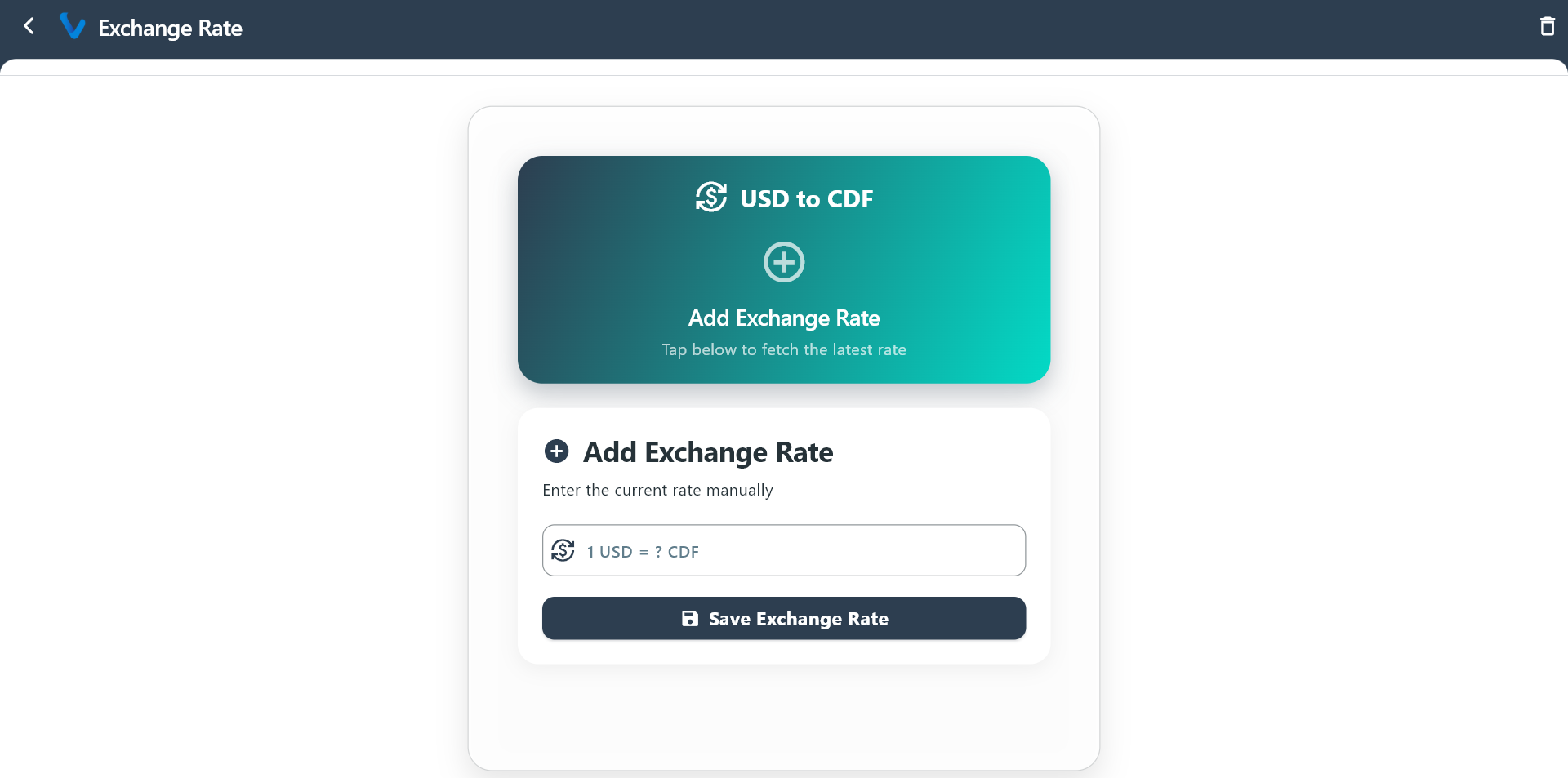
Exchange Rate is used to define the currency conversion value used in the app.
How to use:
- Open Exchange Rate.
- Enter or update the rate.
- Save the changes.
3.6 Settings
Settings control how the app looks, connects, prints, and handles access.
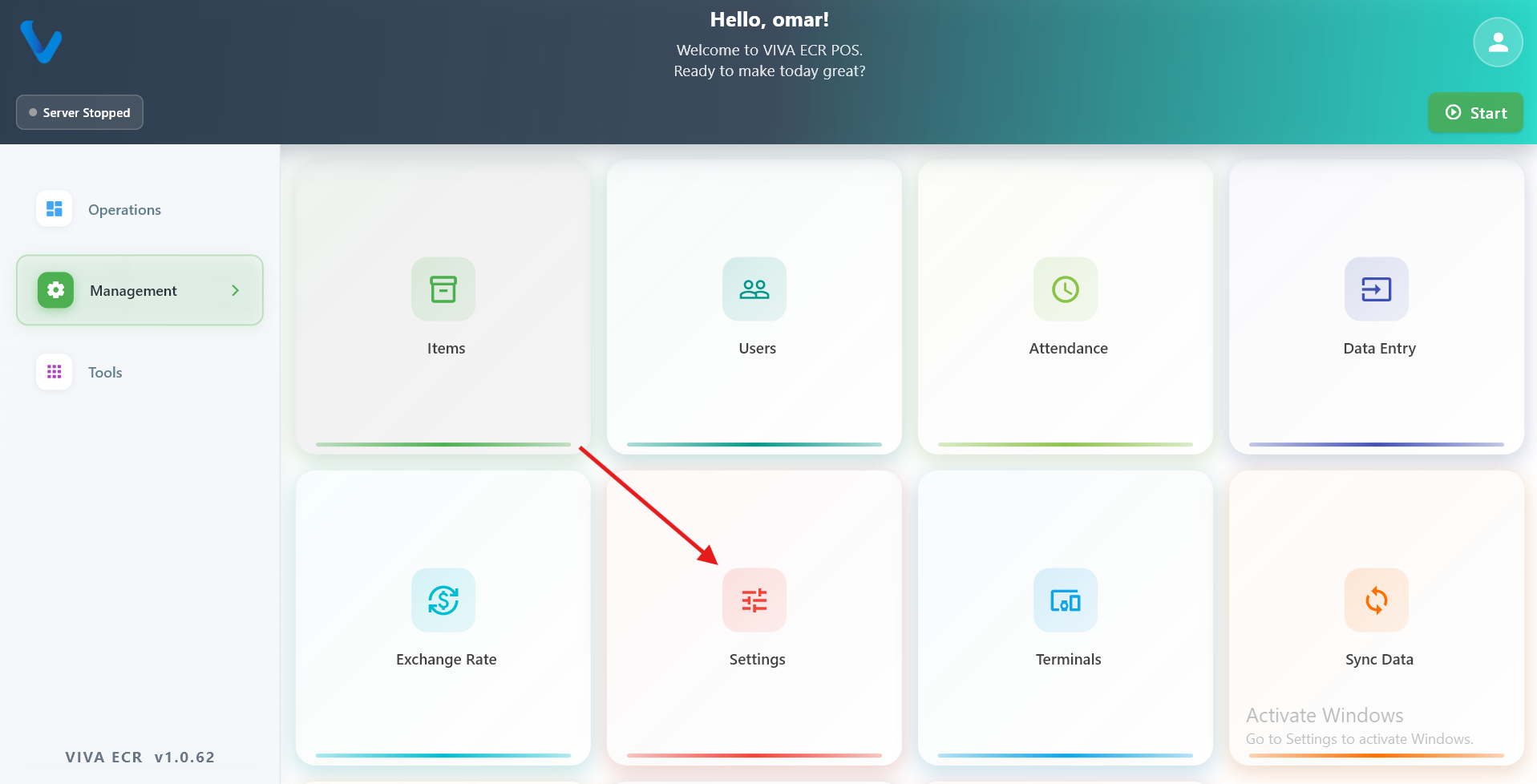
3.6.1 UI
UI controls visual display options such as product card size, layout, and other on-screen preferences.
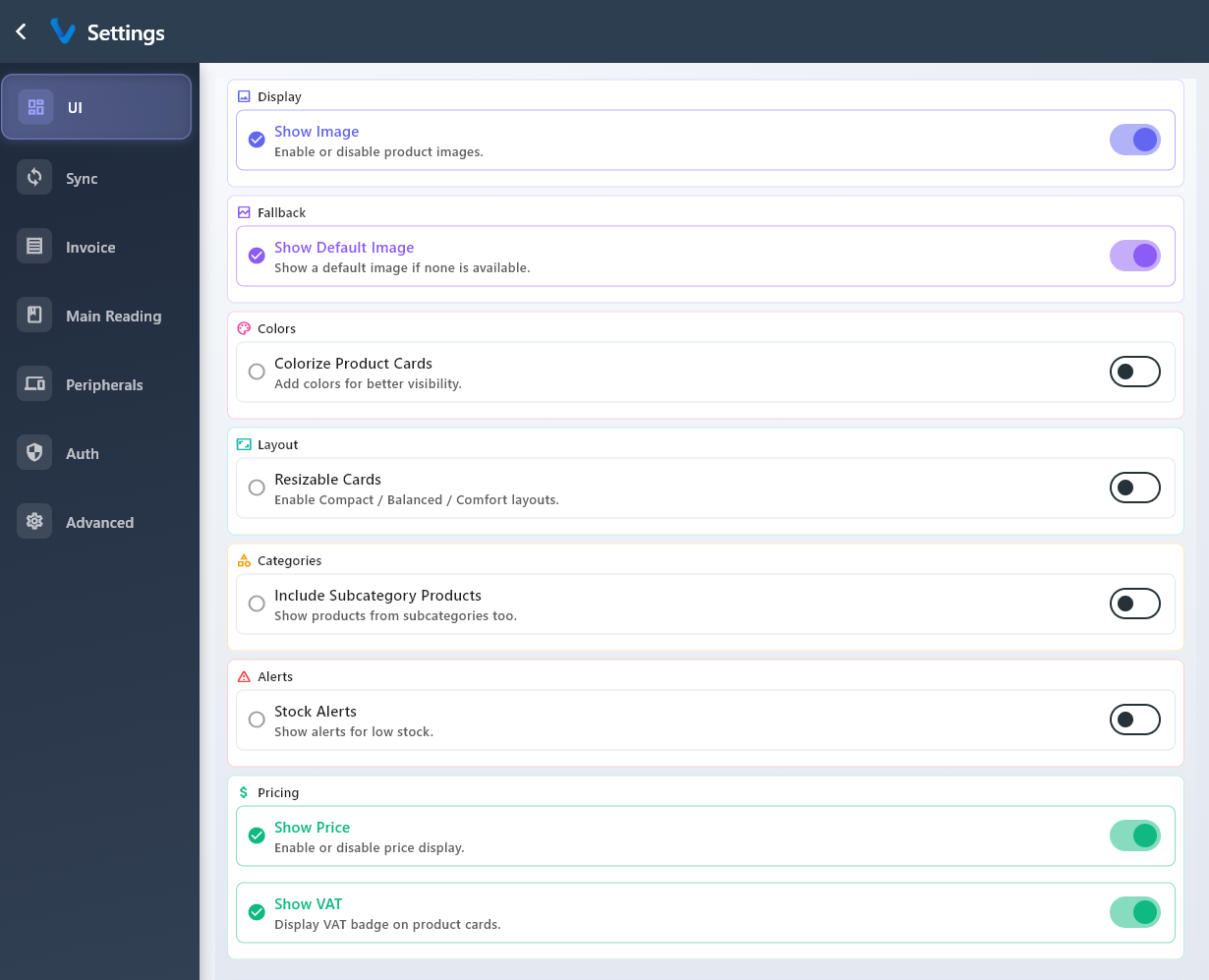
3.6.2 Sync
Sync settings control automatic synchronization and timing so the device stays up to date.
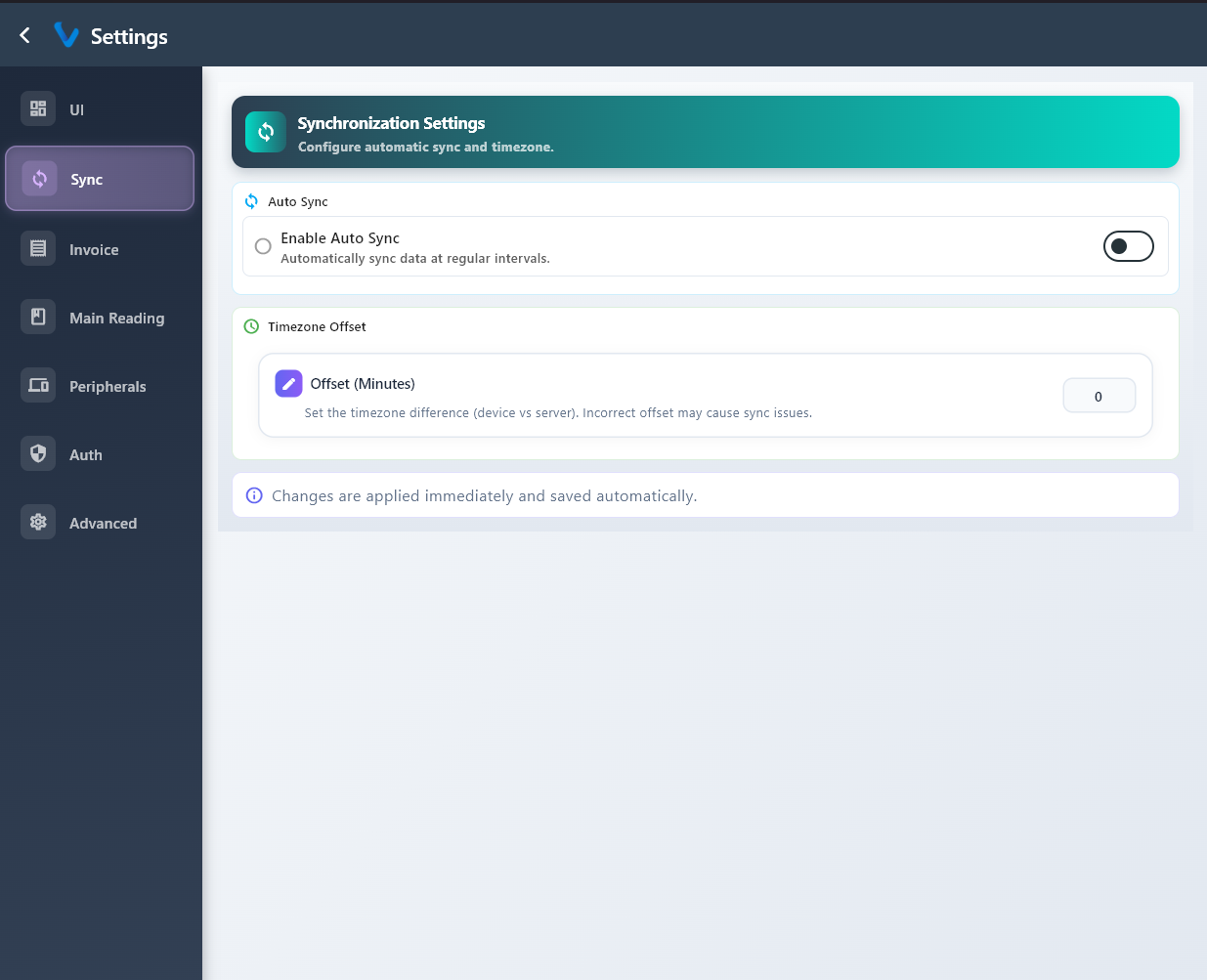
3.6.3 Invoice
Invoice settings control how invoice information appears and how it is shown to the customer.
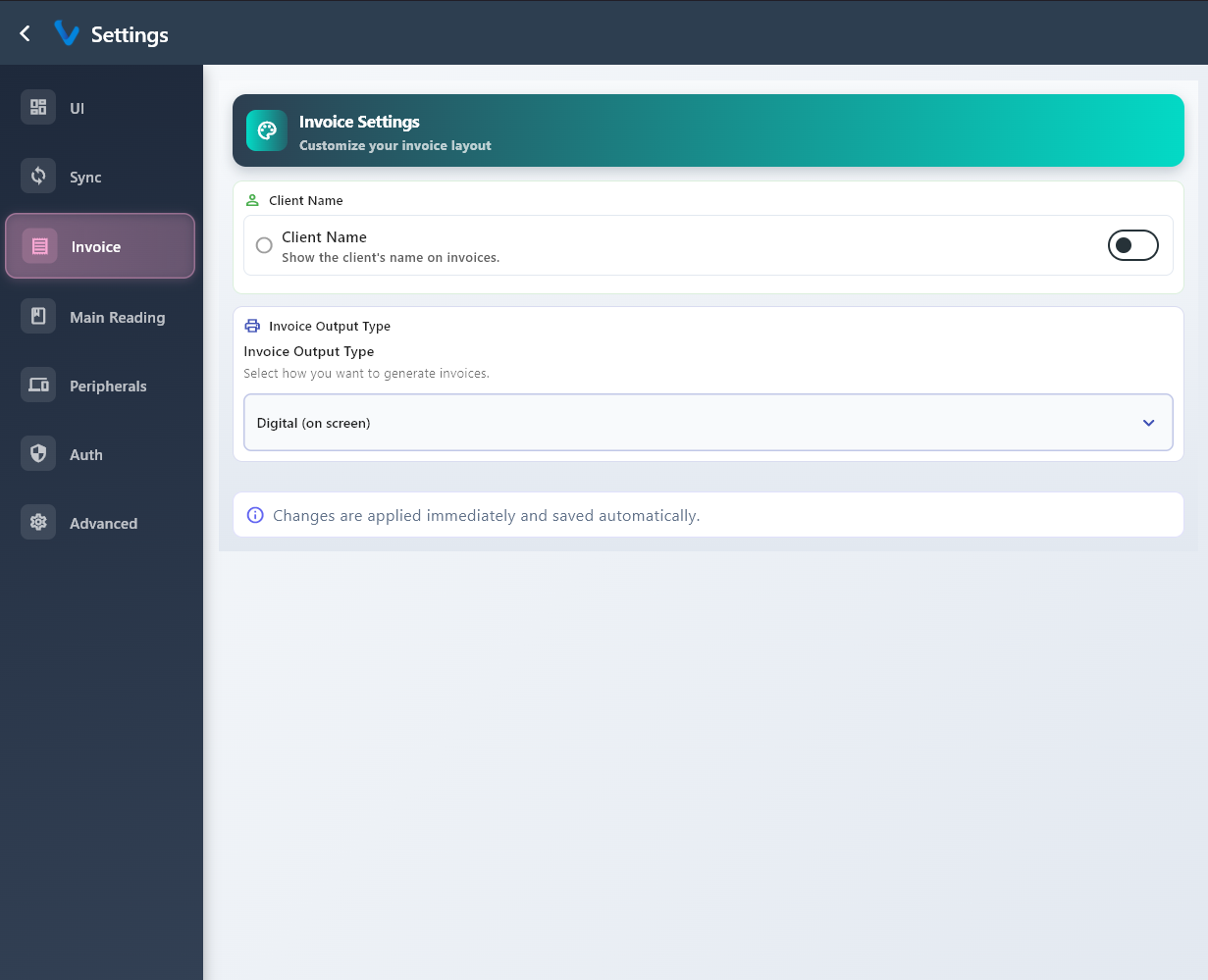
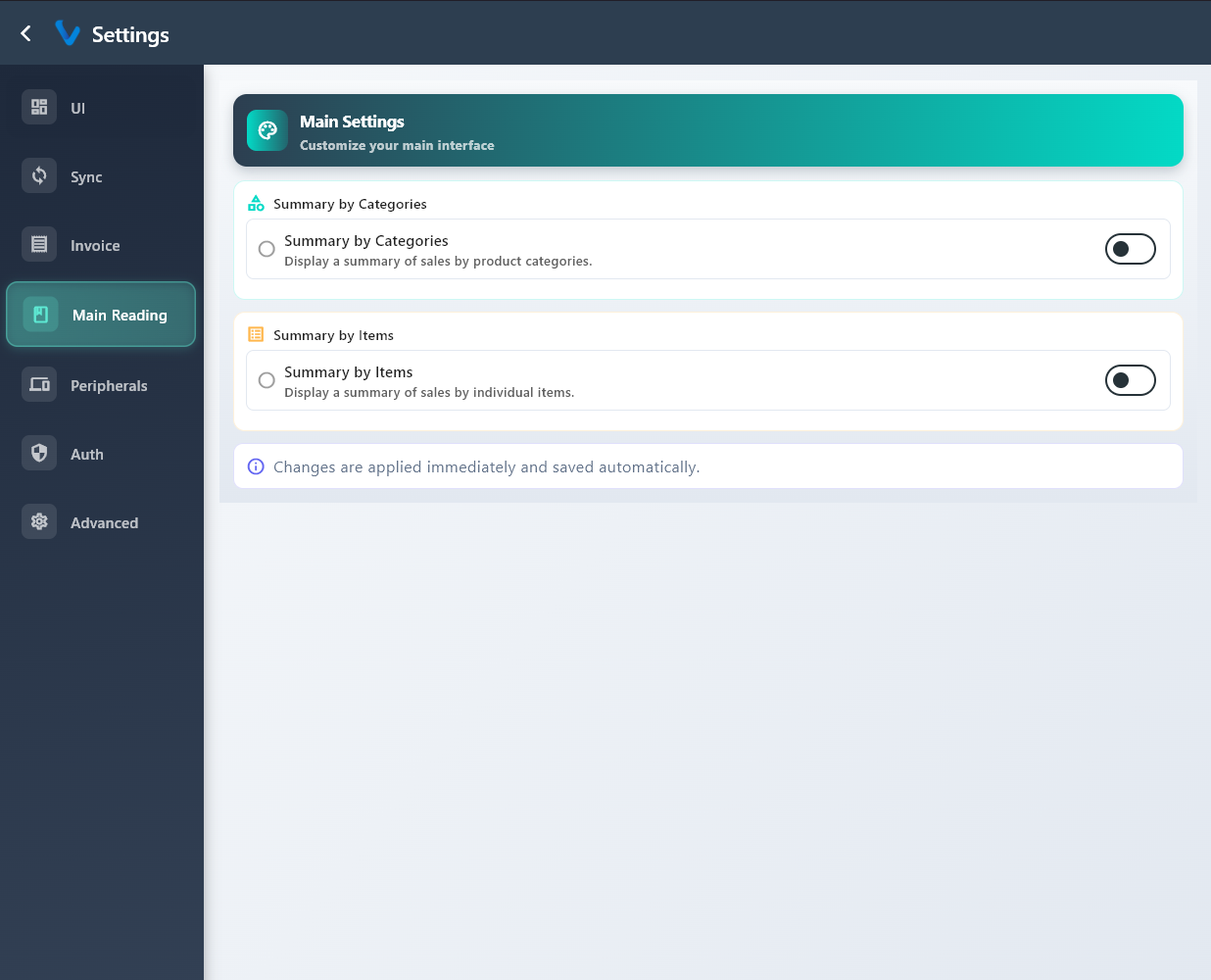
3.6.4 Main Reading
Main Reading settings control which summary style is shown on the main reading screen.
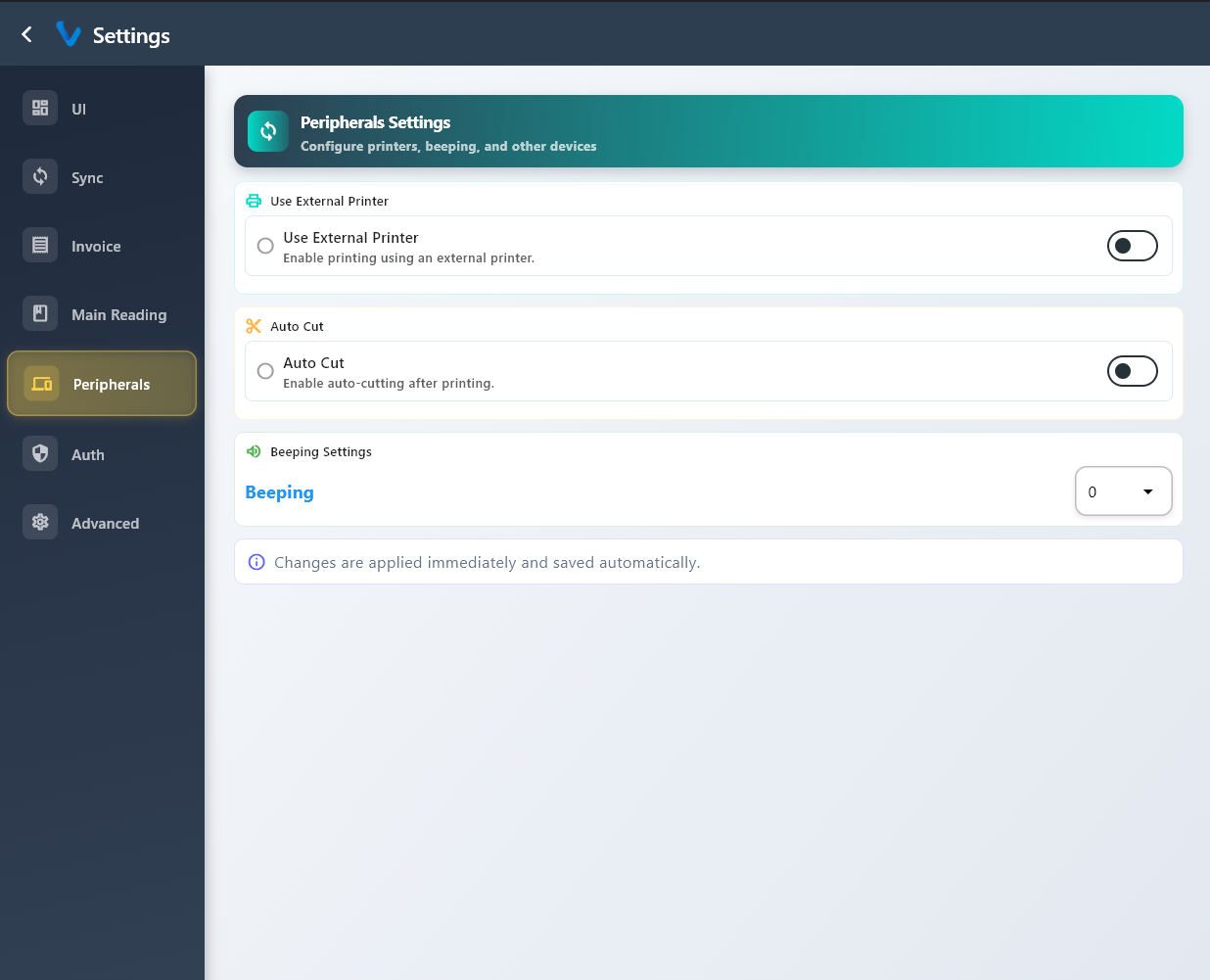
3.6.5 Peripherals
Peripherals settings are used for printer and other connected device options.
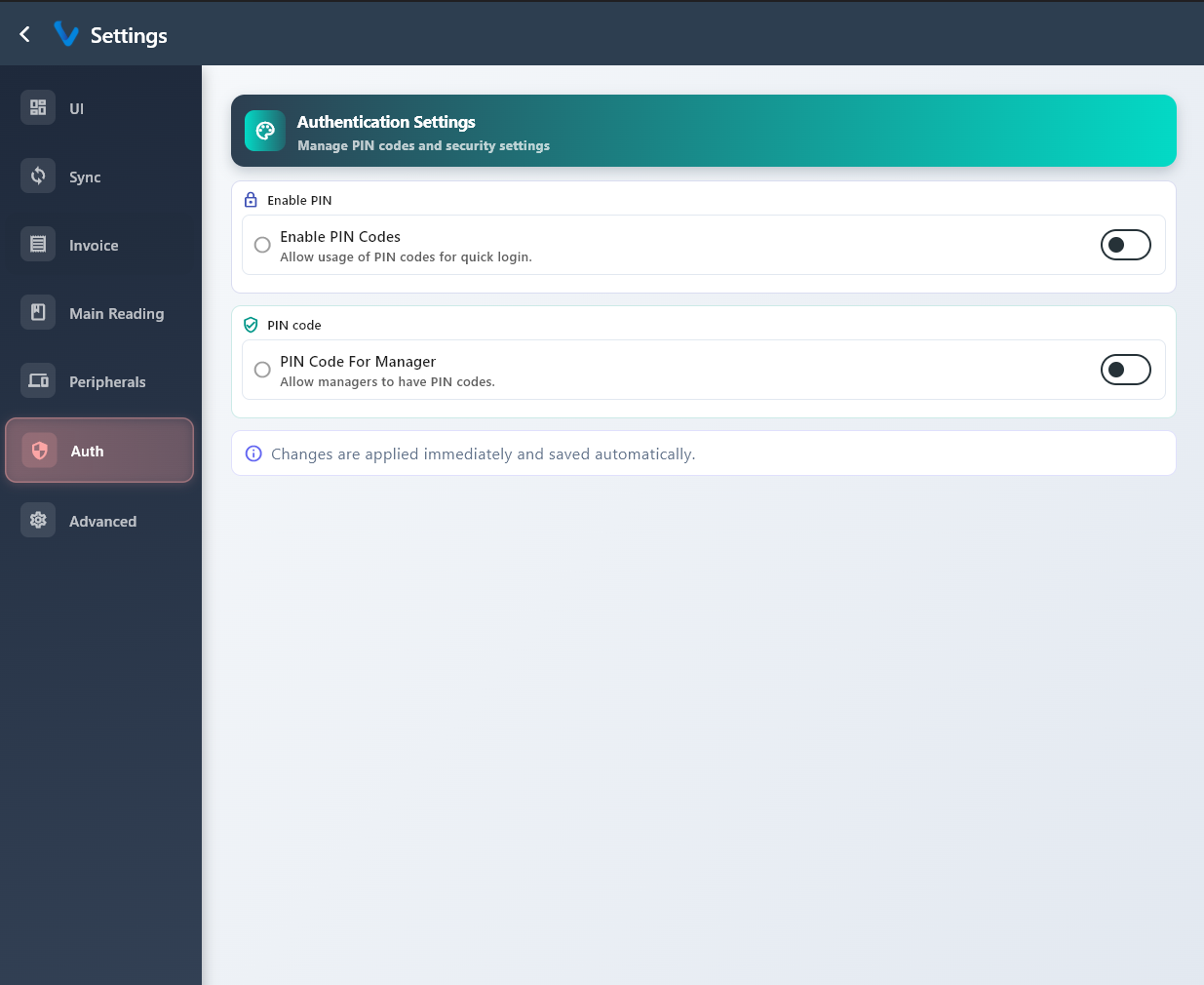
3.6.6 Auth
Auth settings control PIN rules and access security for users.
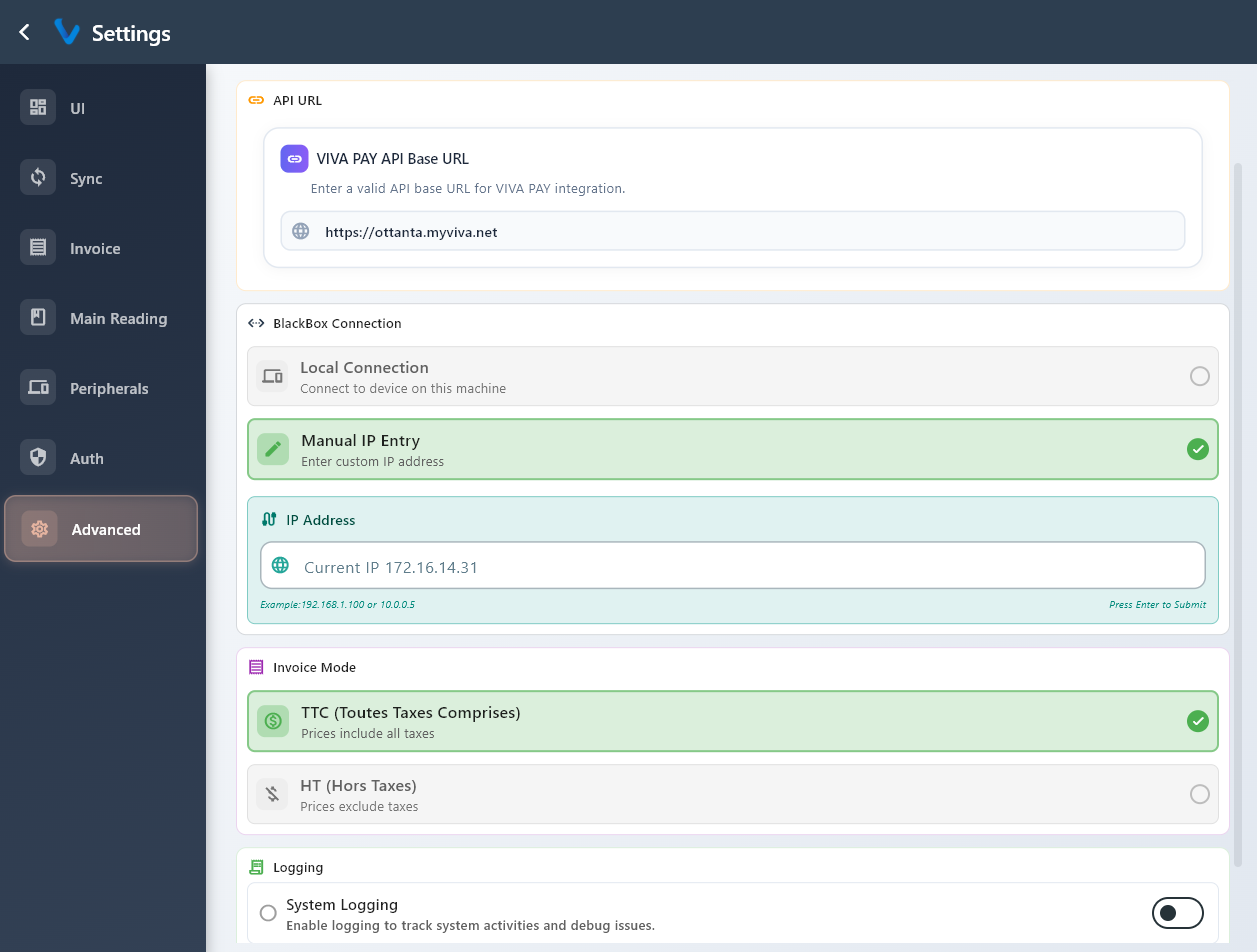
3.6.7 Advanced
Advanced settings are used for higher-level options that are usually adjusted by supervisors or administrators.
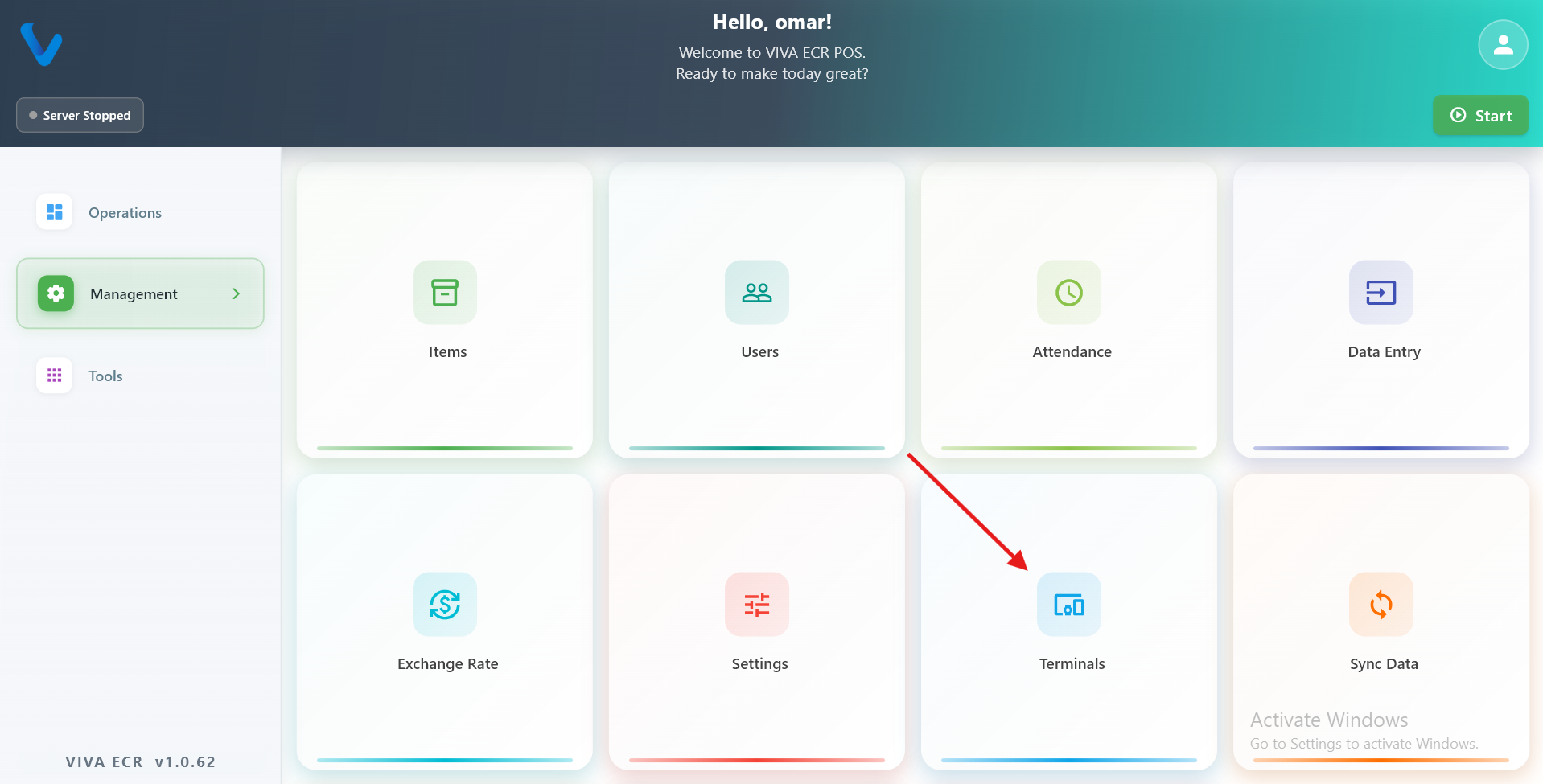
3.7 Terminals
In this setup, the Station is the main device that holds all data and runs the system. Terminals are secondary devices — usually tablets carried by waiters or staff on the floor — that connect to the Station over the local Wi-Fi network. When a waiter takes an order on a Terminal, that order flows through to the Station automatically.
The Terminals section in Management is where the Station keeps track of which Terminal devices exist and which staff members are allowed to use them.
3.7.1 Terminal Registry
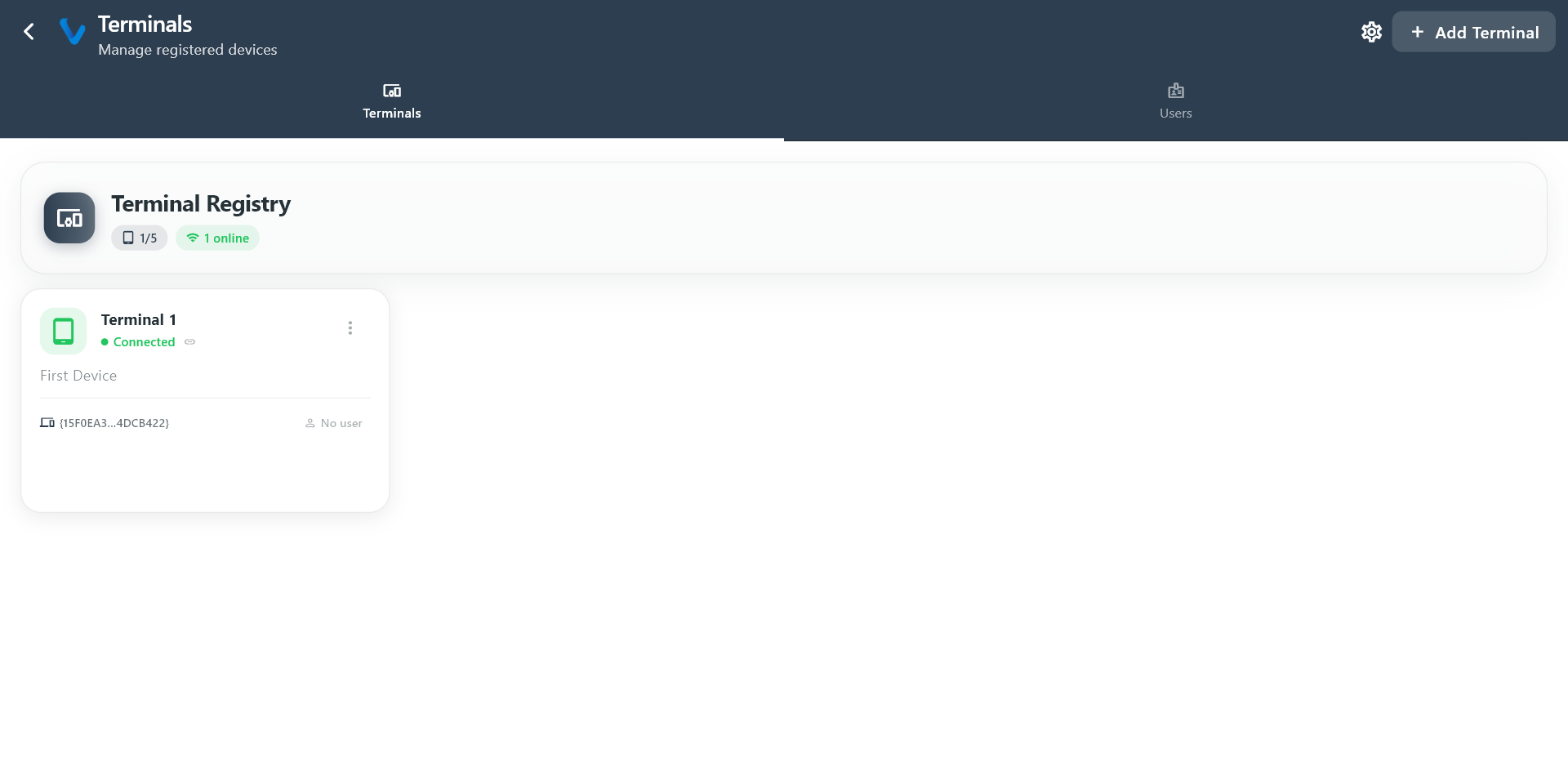
The Terminal Registry is the list of all Terminal devices that have been introduced to this Station. Each entry represents a physical device (a tablet or phone) that is allowed to connect and communicate with the Station.
When you add a terminal here, you give it a name and an identifier so the Station can recognize it on the network. If a device is not in this list, it will not be able to pair with the Station.
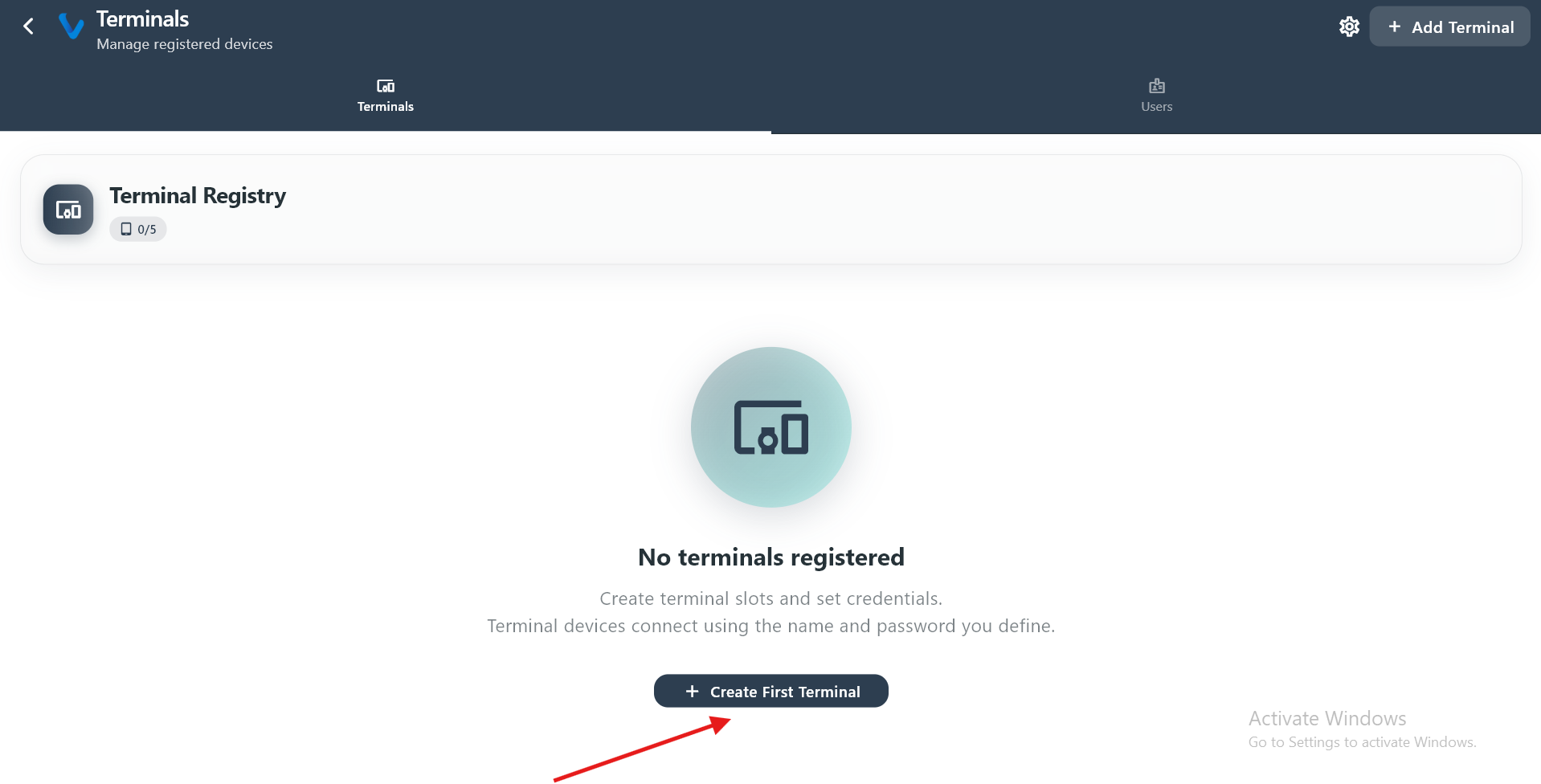 The list of registered terminals showing each device name and its current connection status.
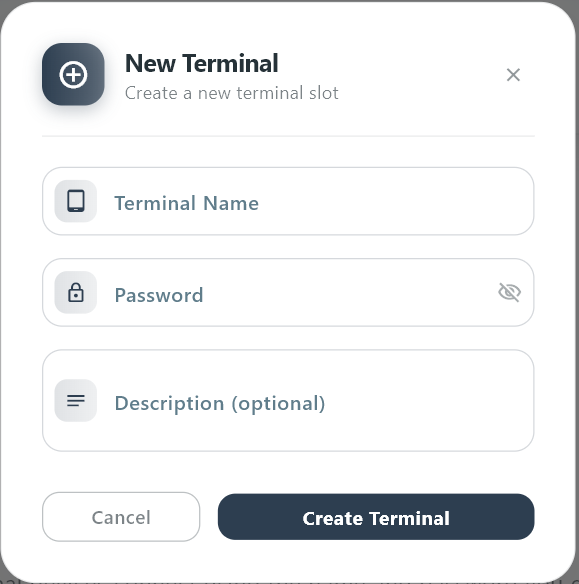 Fill in the device details to register a new terminal and allow it to connect to this Station.
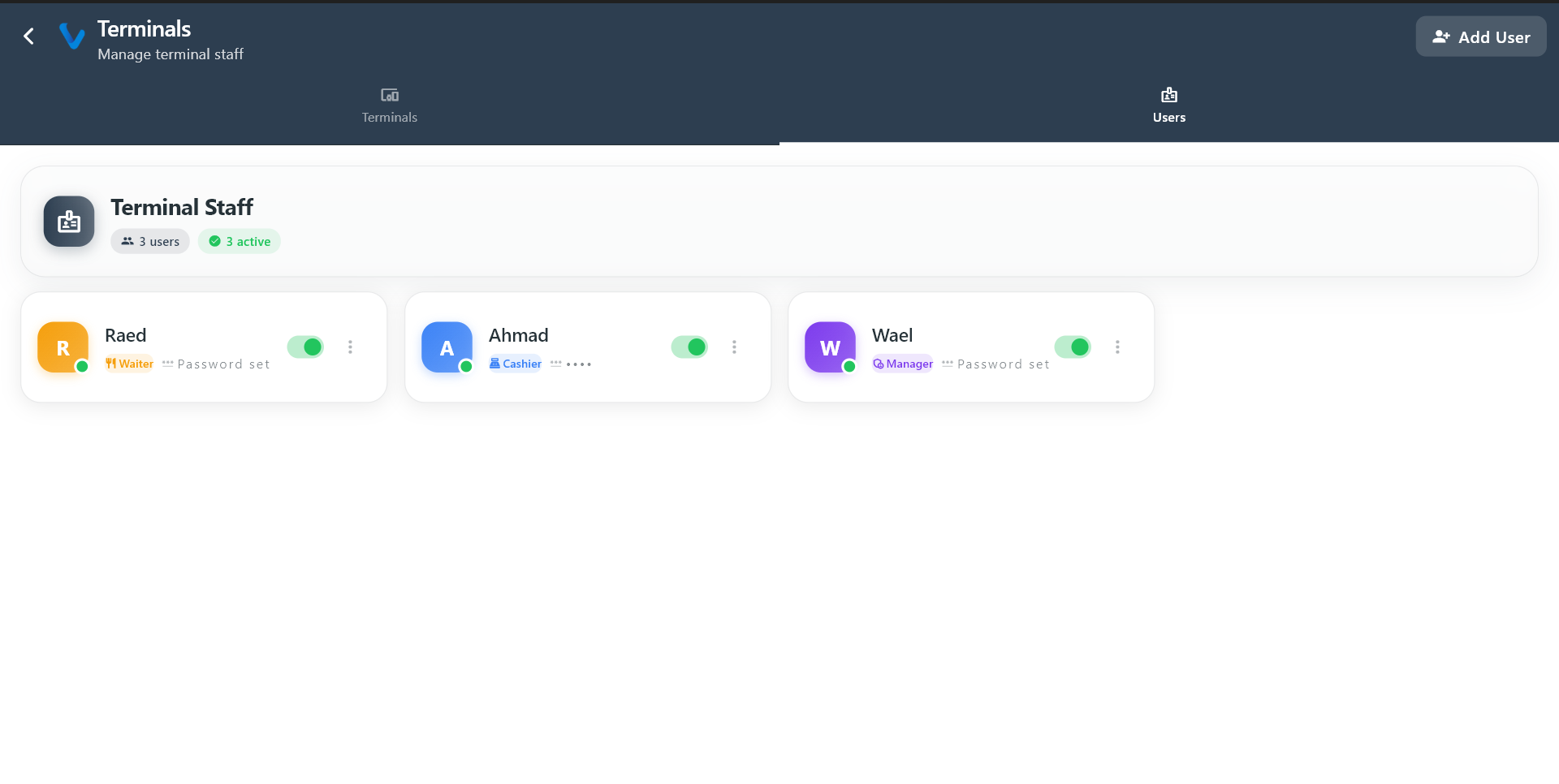
3.7.2 Terminal Users
Terminal Users are the staff accounts that can sign in on a Terminal device. Not every system user can log in on a Terminal — only those added here are permitted. This gives you control over which staff members can use which devices during service.
When you add a Terminal User, you set a name and a PIN. The staff member uses that PIN to log in on the Terminal quickly during a shift.
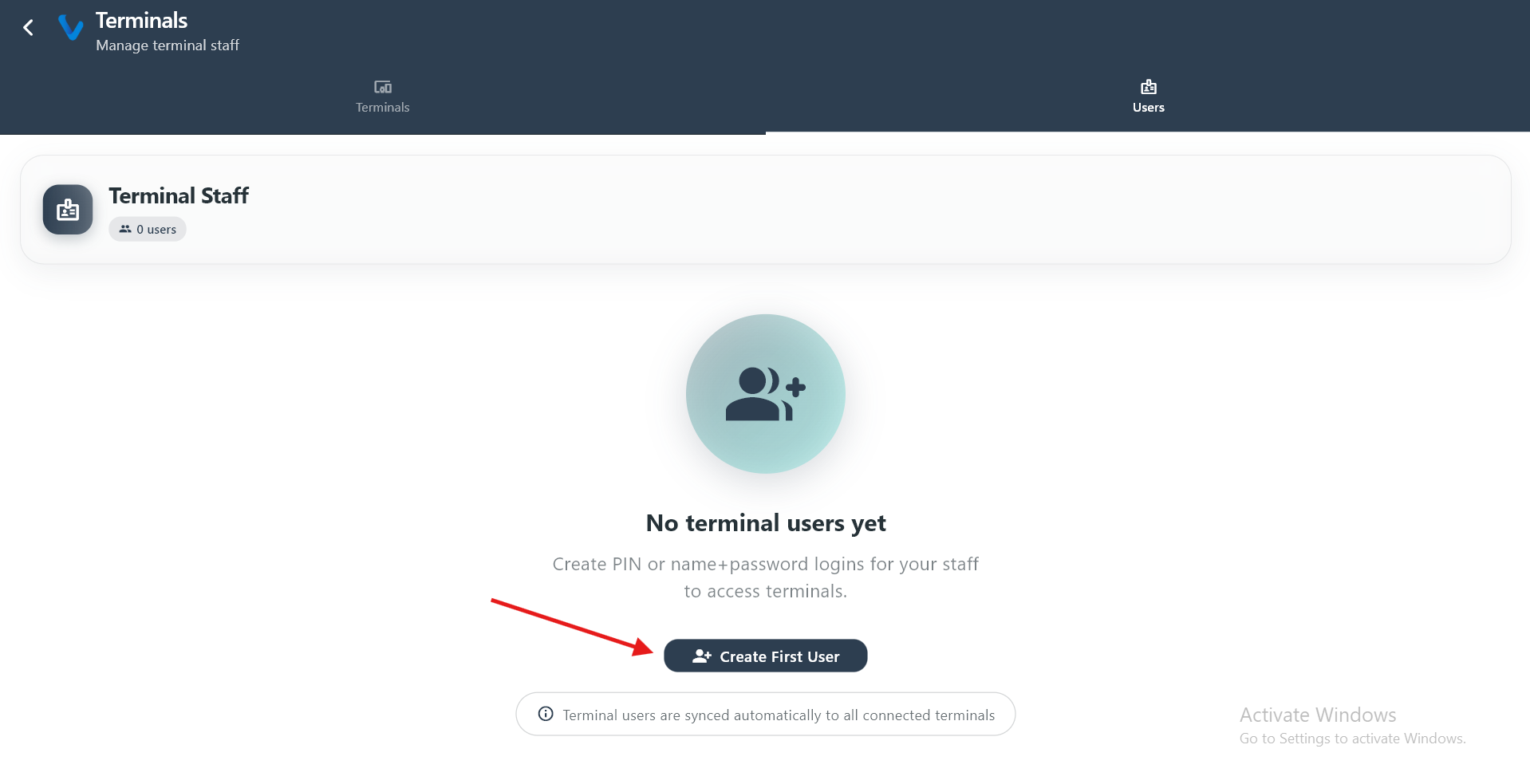 The list of staff accounts that are permitted to sign in on connected terminals.
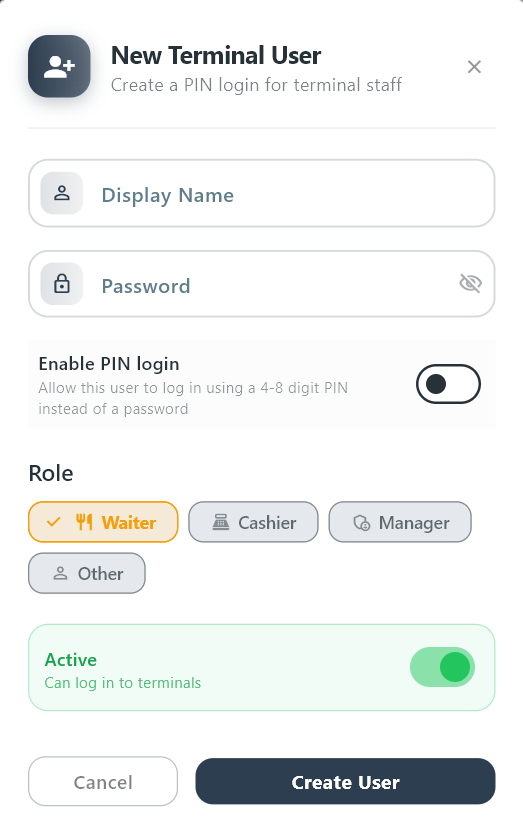 Create a new terminal user by entering their name and assigning a PIN for quick login.
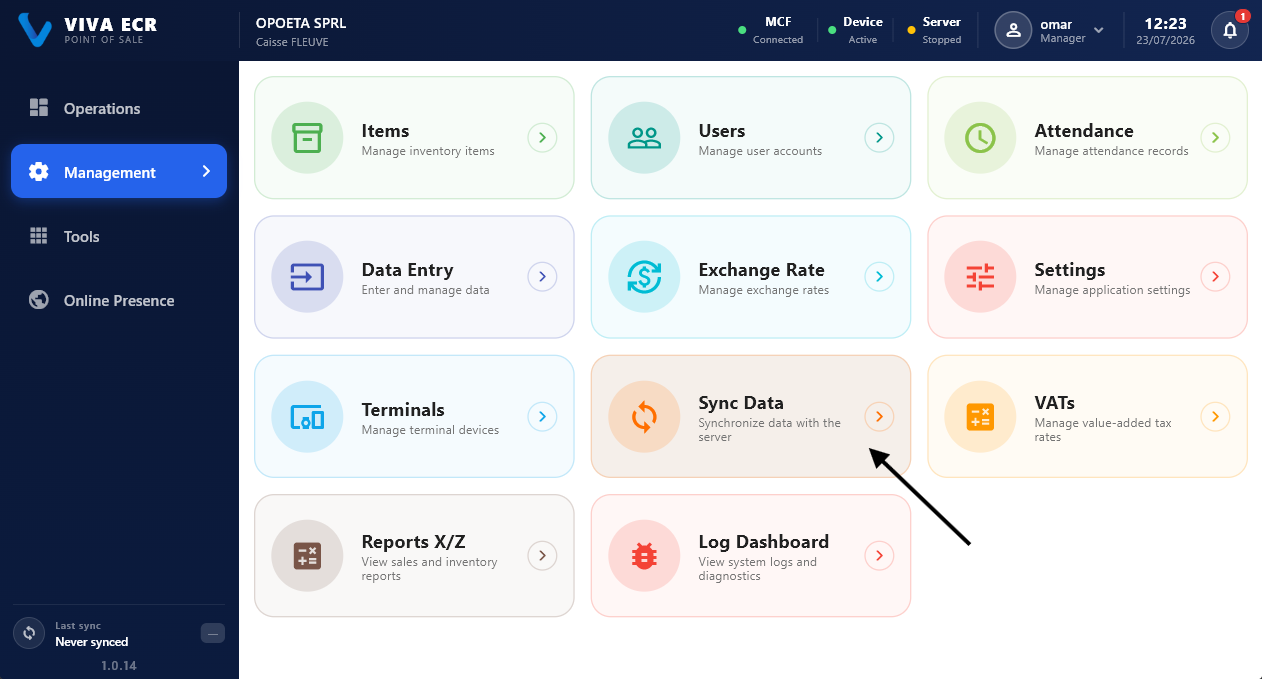
3.8 Sync Data
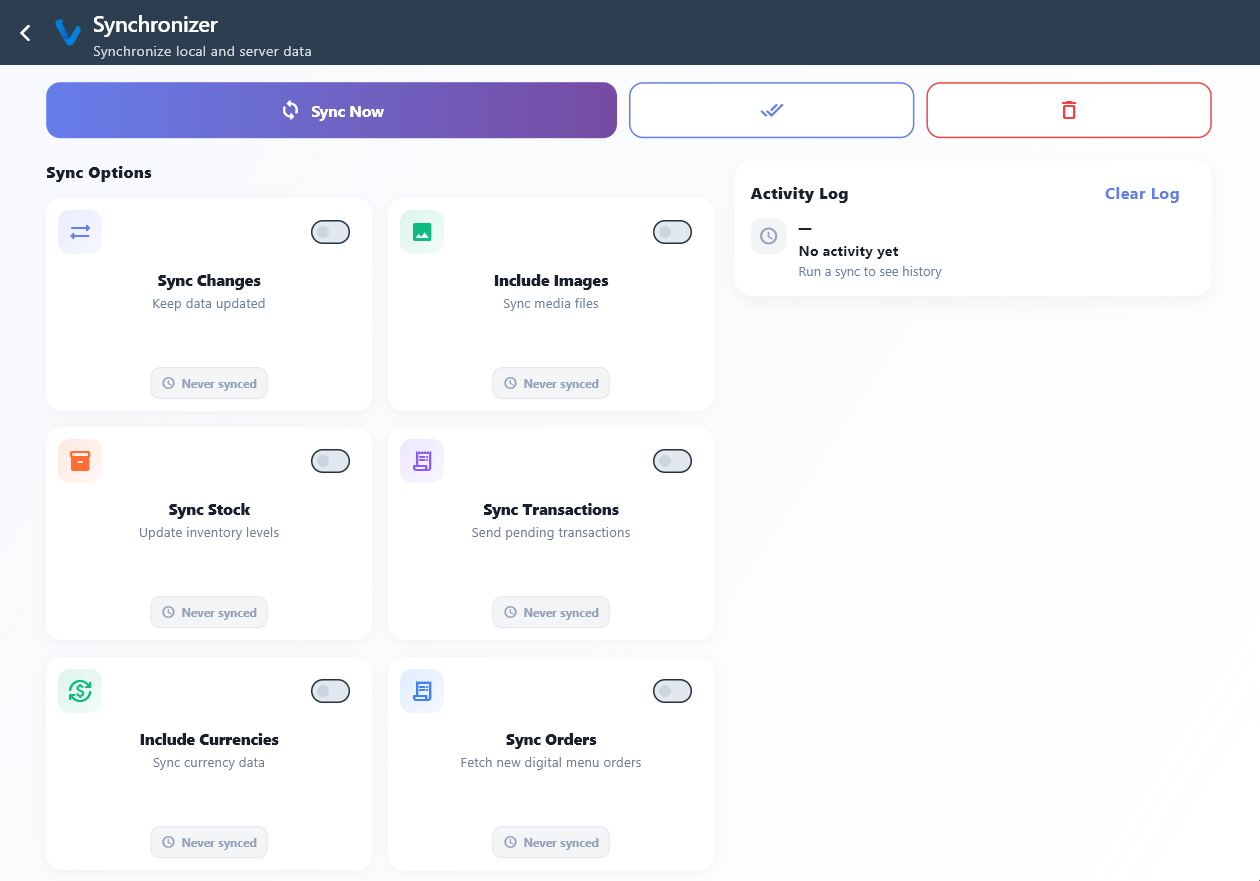
Sync Data is used to send and receive updates between the local device and the main data source.
What you can do:
- Run sync immediately
- Include stock, transactions, and currencies
- Review the activity log after syncing
3.9 VATs
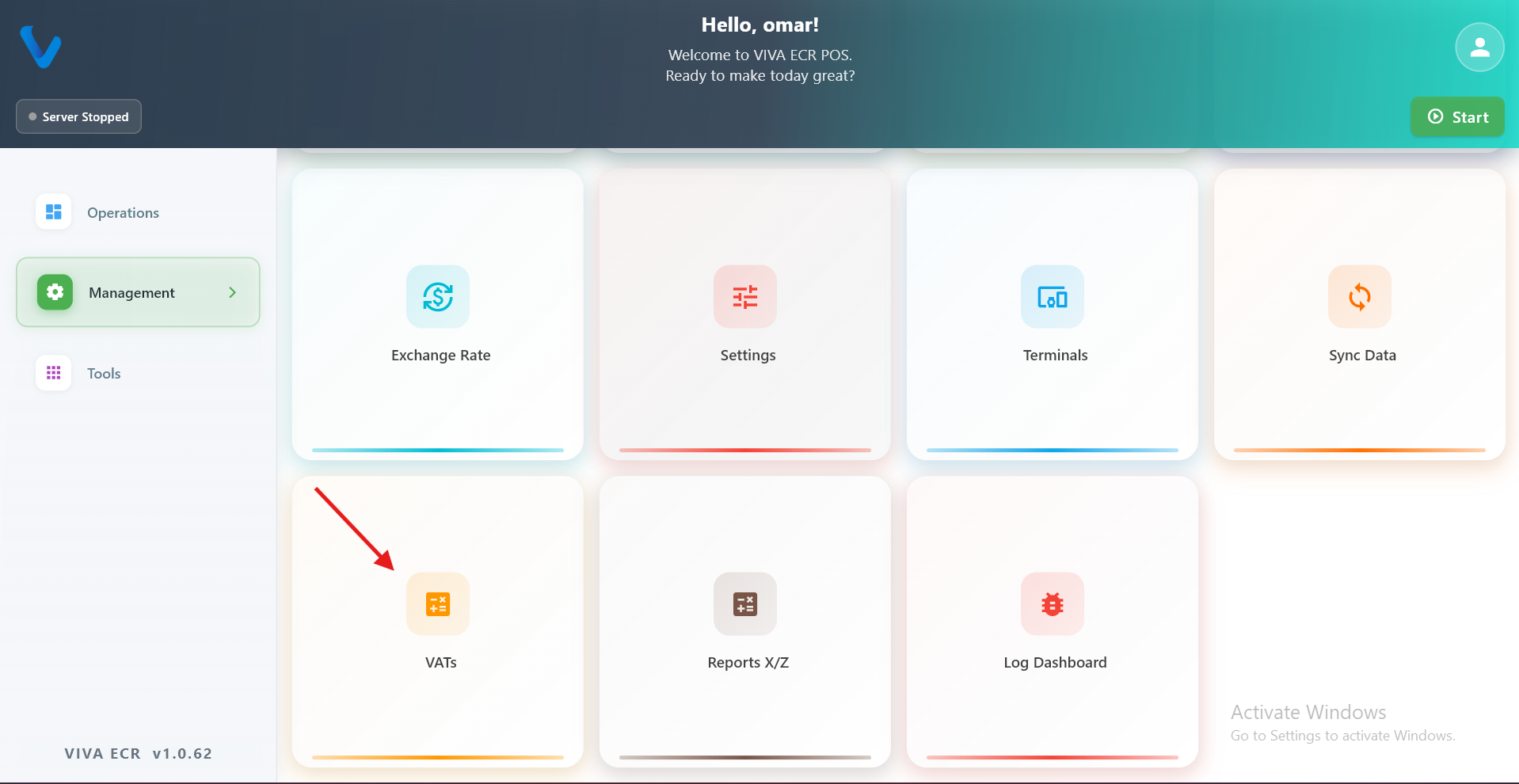
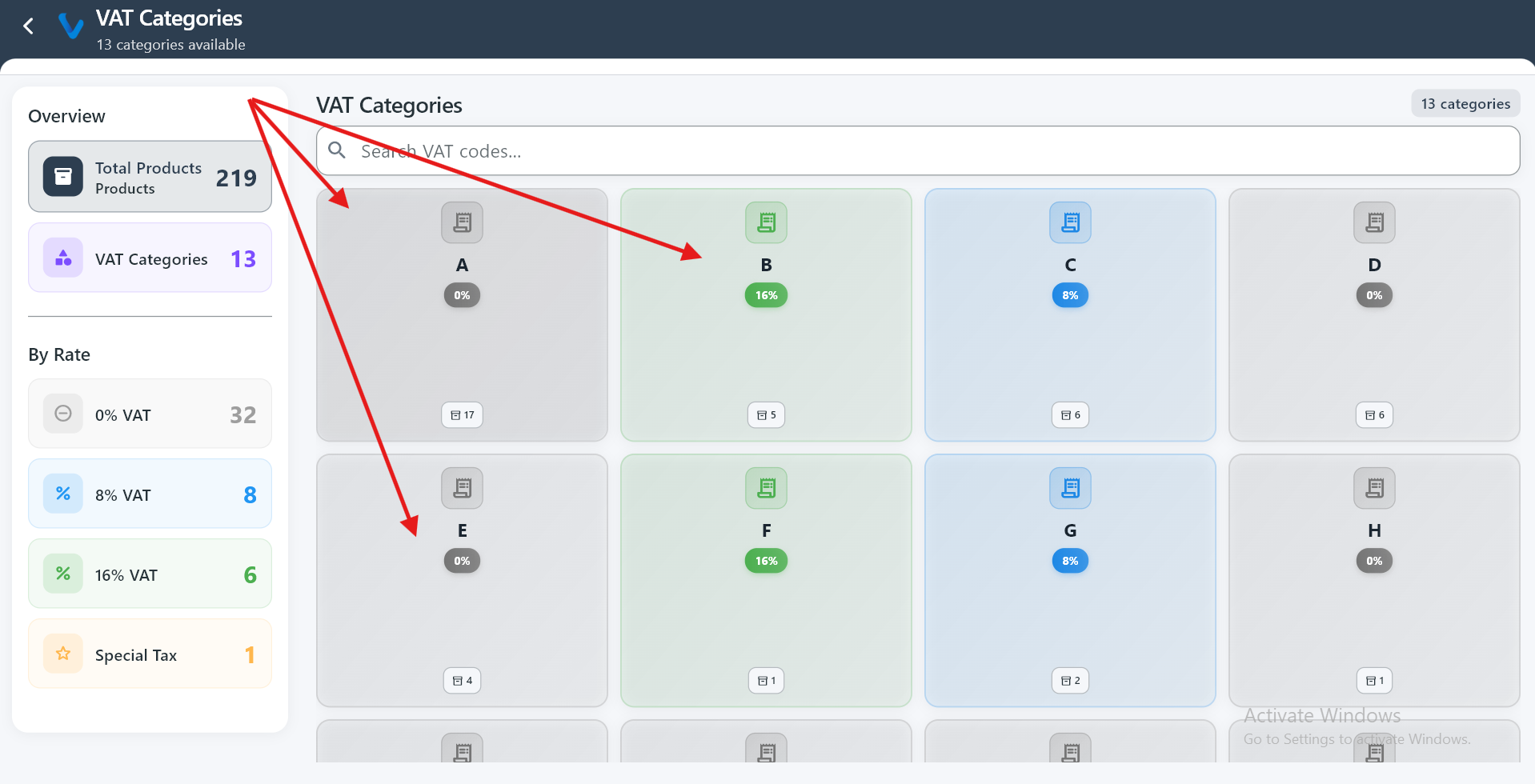
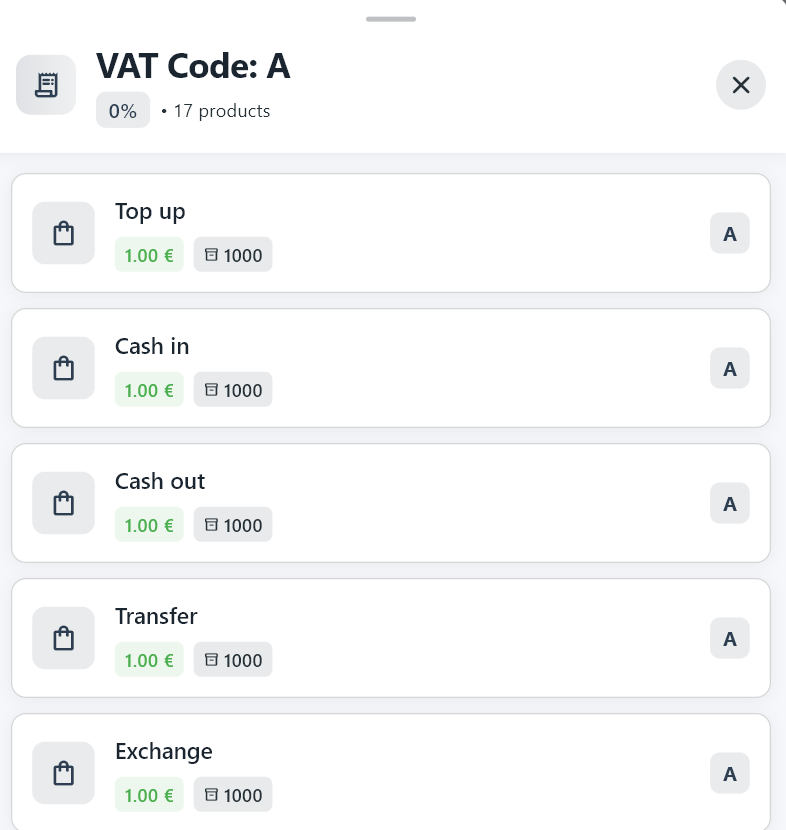
VATs section helps you review tax categories and the products linked to each tax code.
3.10 Reports
Reports section is used to generate daily, sales, and closing reports.
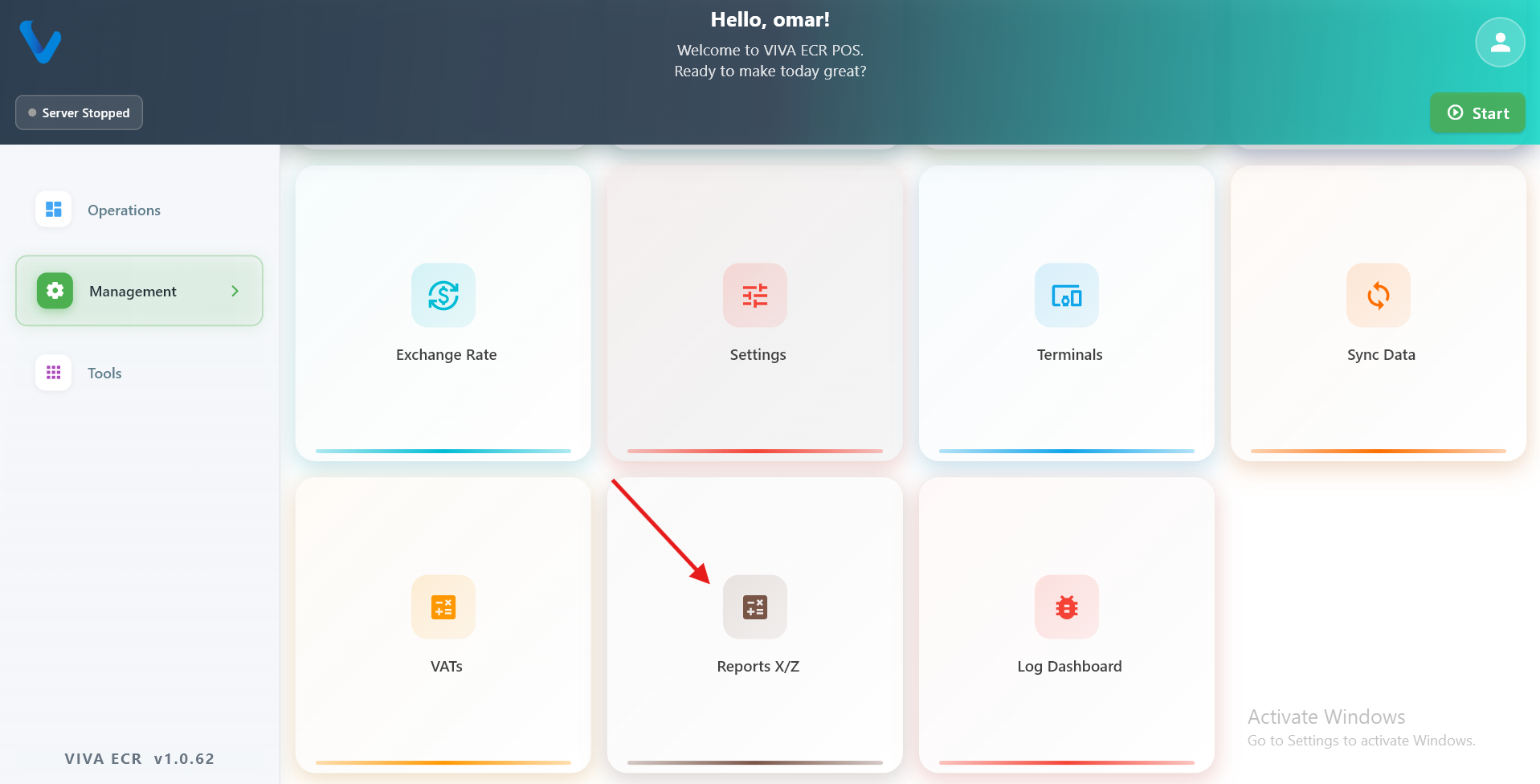
1️⃣ Reports Home
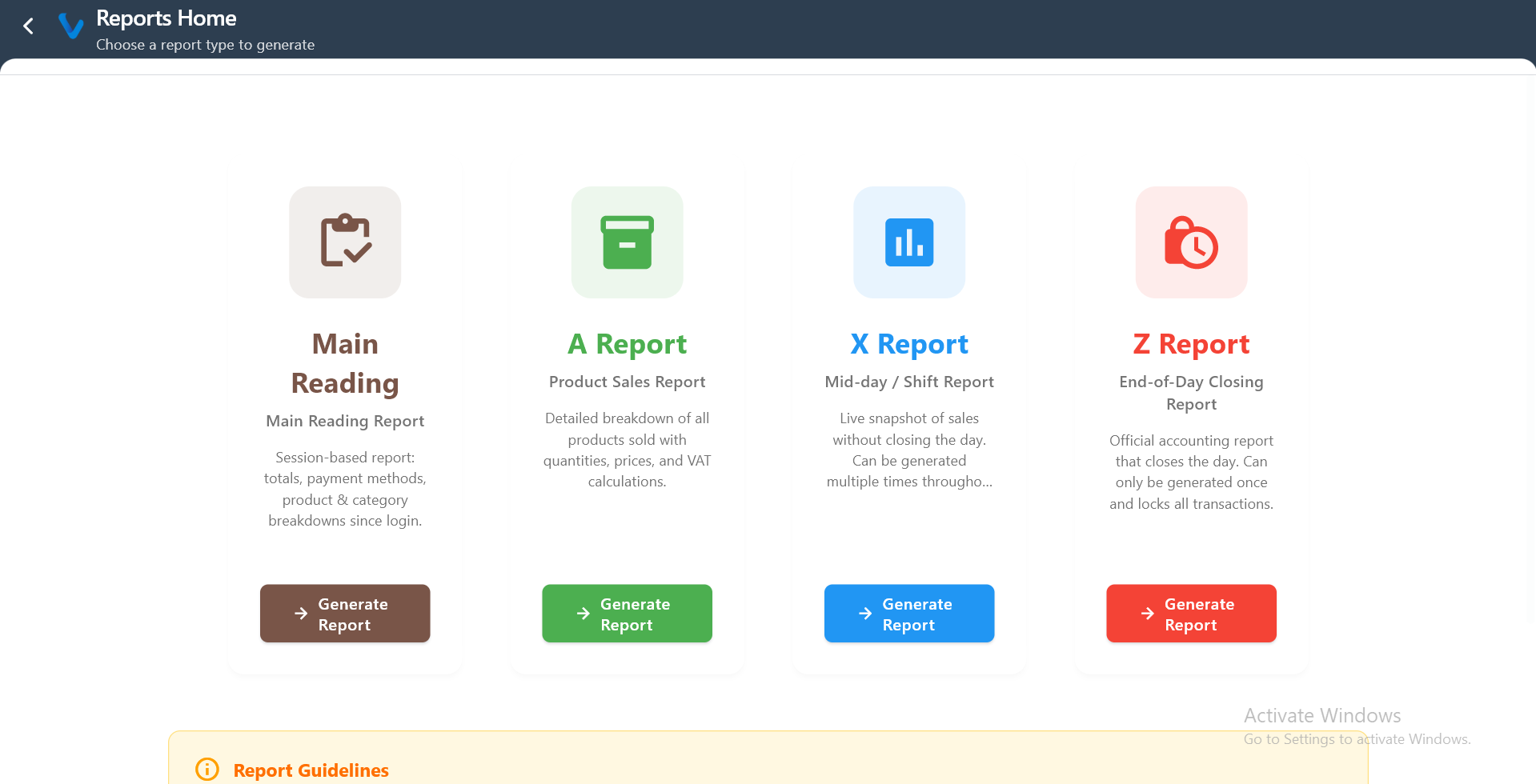
Available report types:
- Main Reading Report
- A Report
- X Report
- Z Report
👉 Main screen to choose which report to generate (Main Reading, A, X, Z reports).
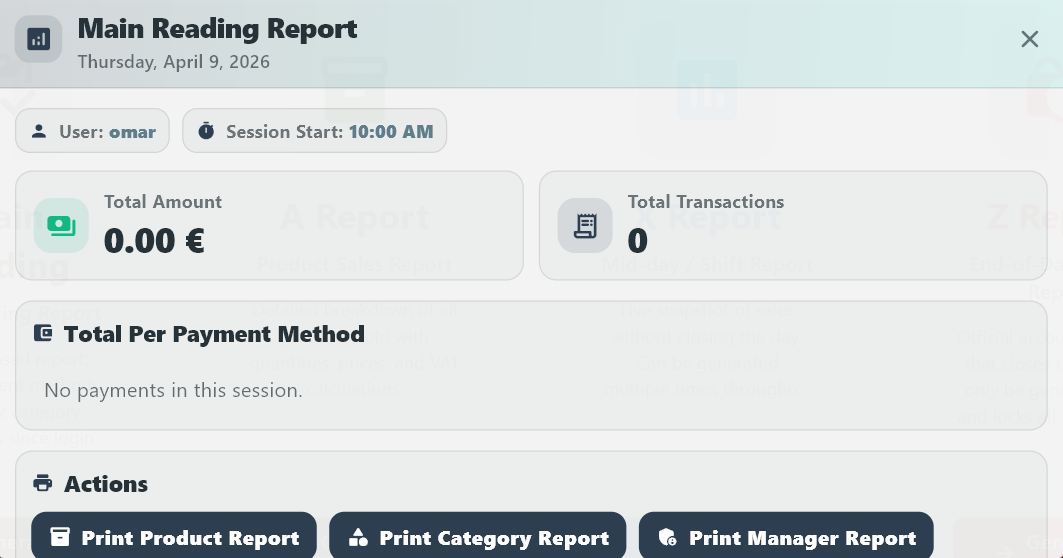
2️⃣ Main Reading Report
👉 Shows current session data (since login) including totals, transactions, and payment breakdown without closing anything.
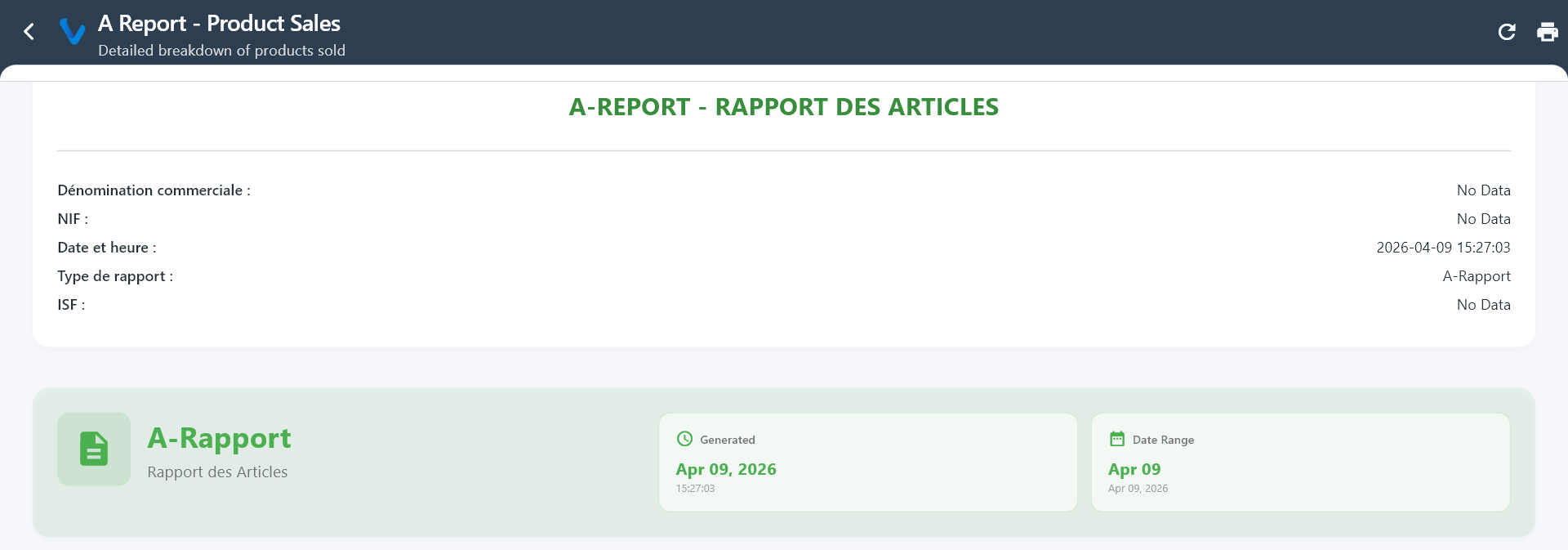
3️⃣ A Report (Product Sales)
👉 Detailed report of all sold products with quantities, prices, and VAT for a selected day.
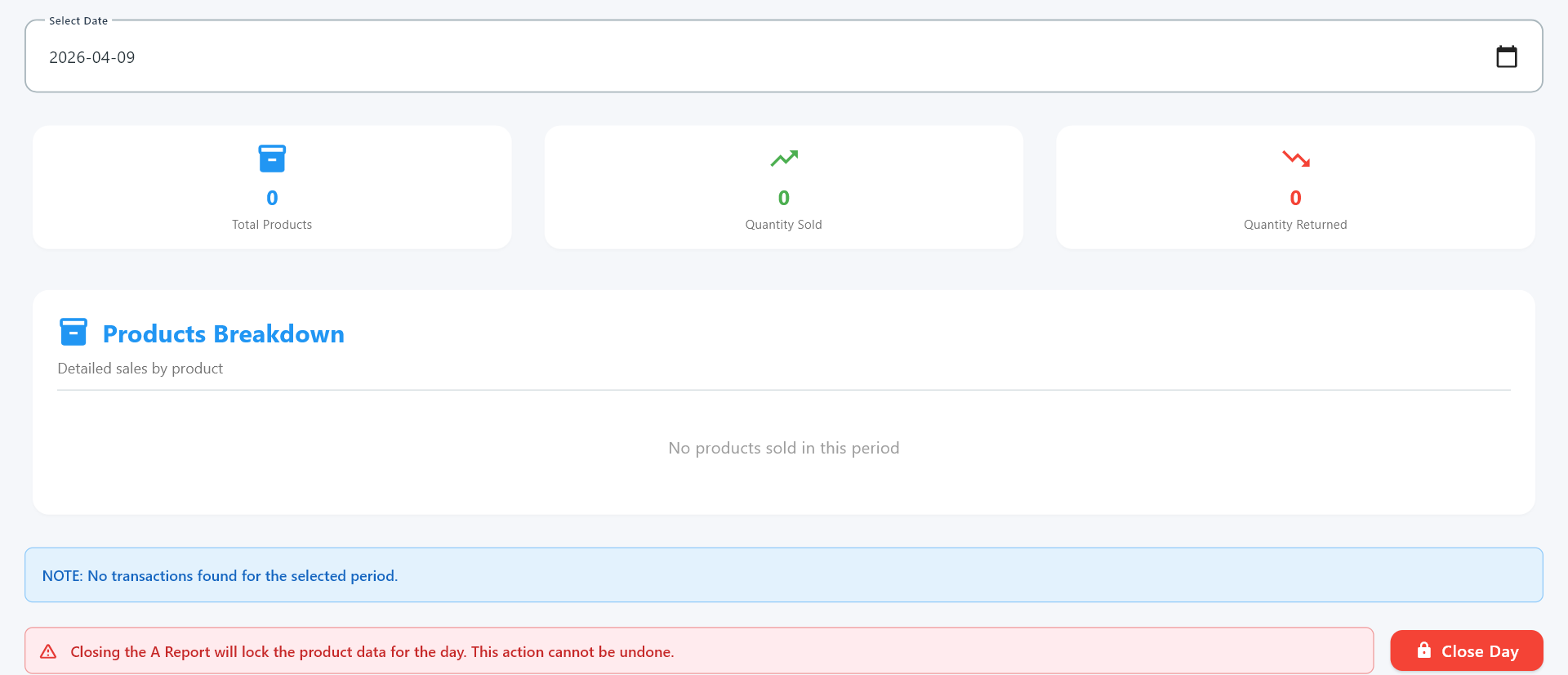
4️⃣ A Report Details
👉 Displays product statistics (total products, sold quantities, returns) and allows closing the day for product data.
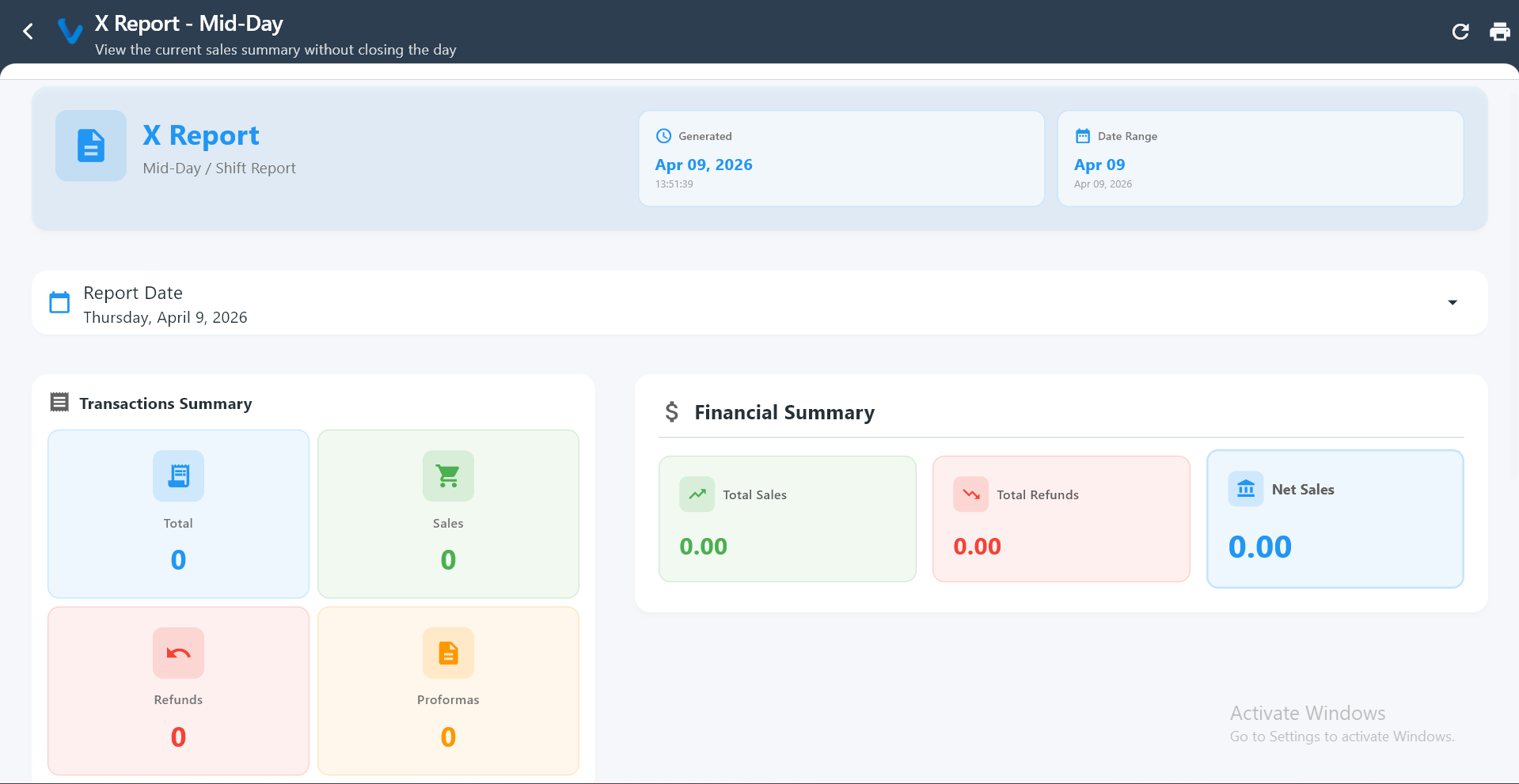
5️⃣ X Report (Mid-Day)
👉 Live snapshot of sales, refunds, and financial summary during the day without closing or locking transactions.
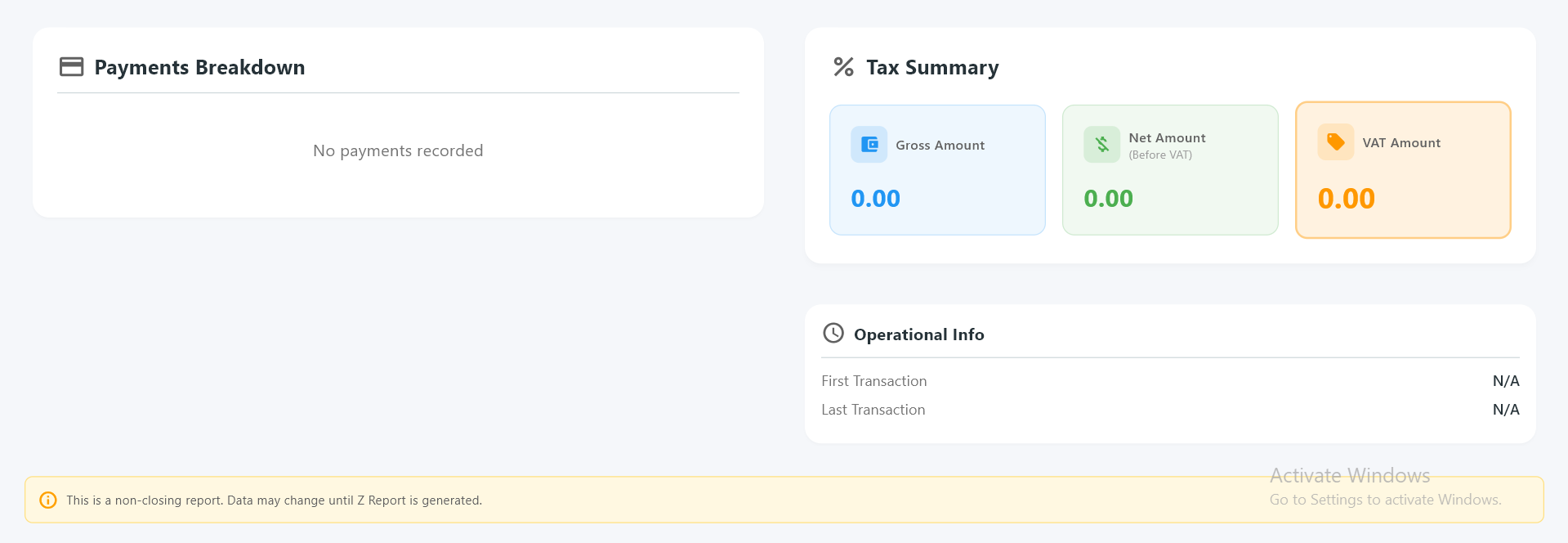
6️⃣ X Report Details
👉 Shows payments breakdown, tax summary, and operational info while keeping the system fully active.
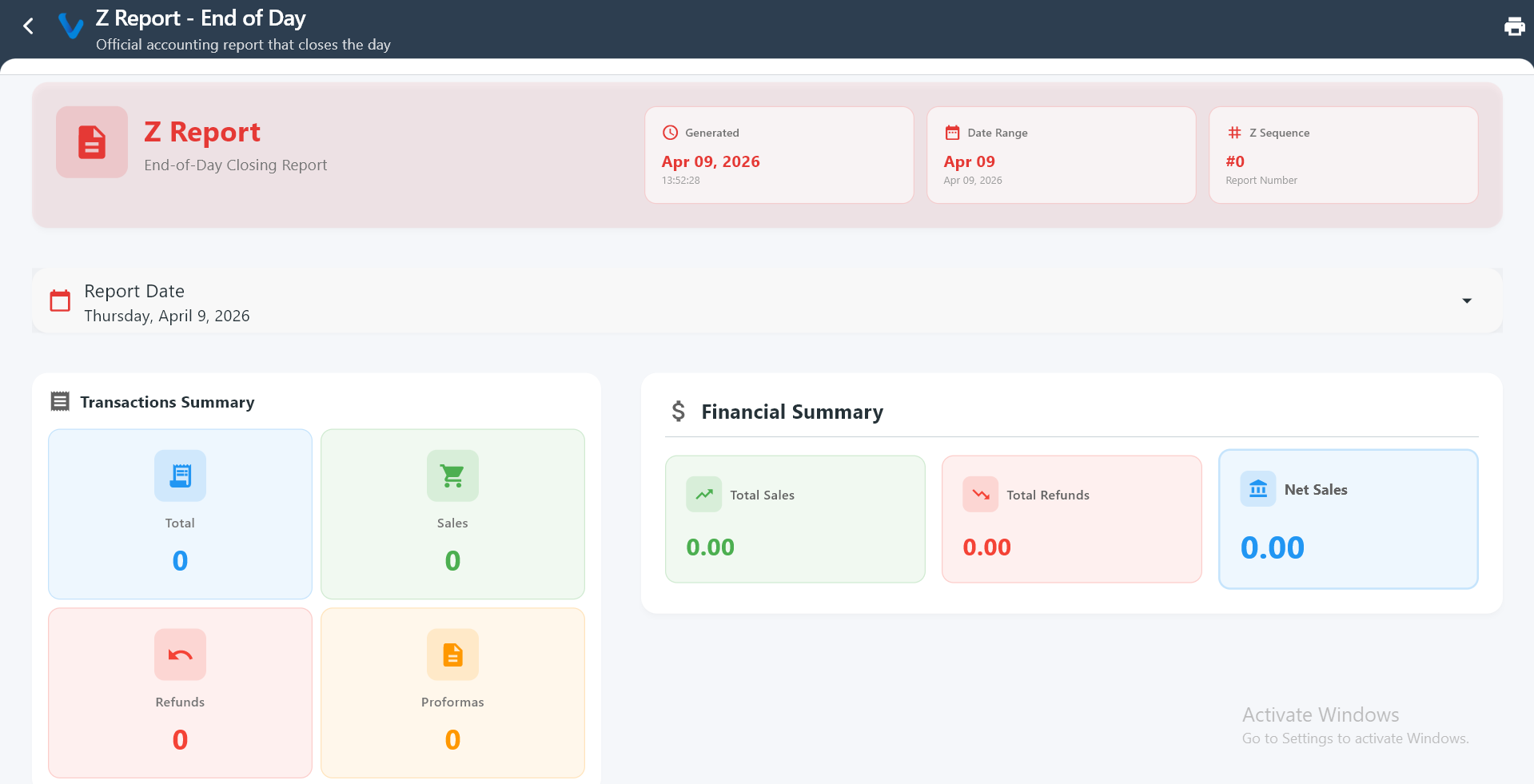
 7️⃣ Z Report (End of Day)
👉 Final official report that summarizes all transactions and financially closes the day.
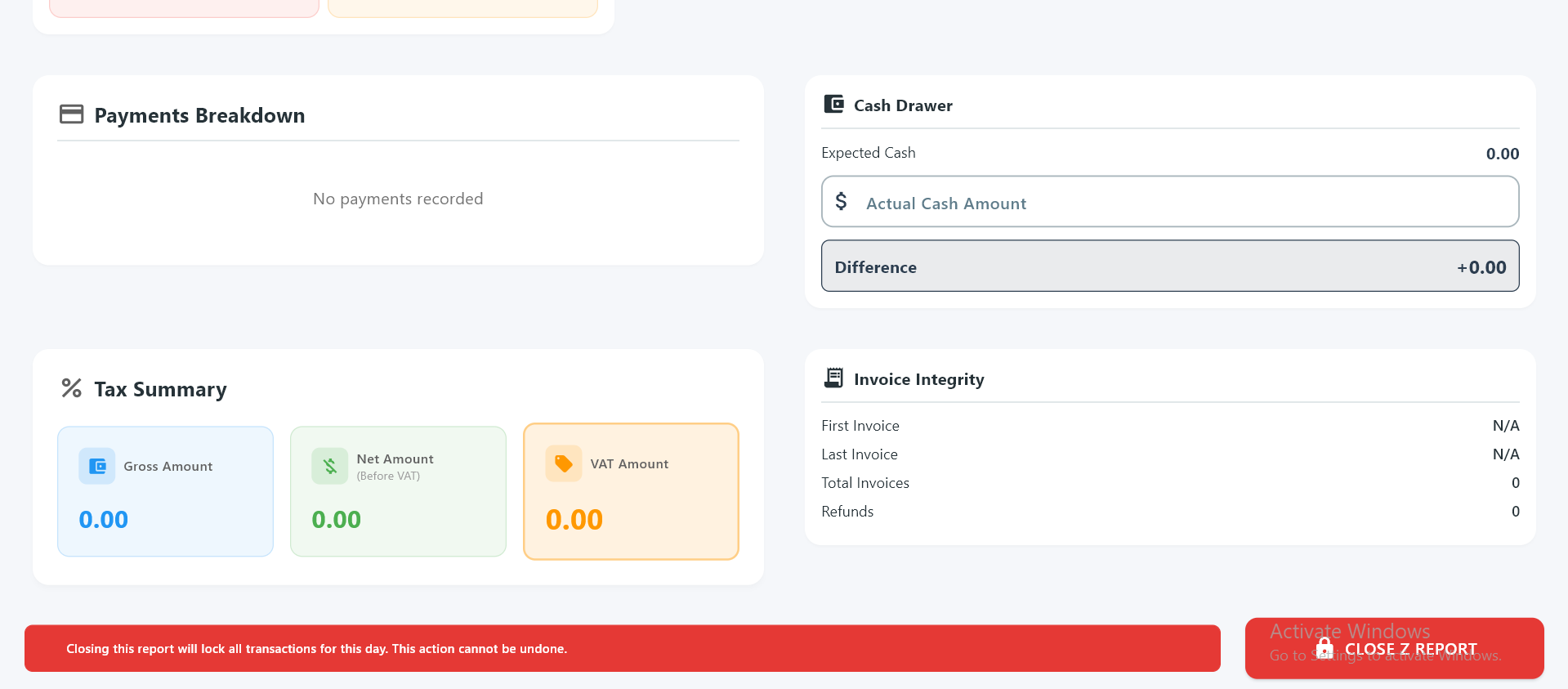
 8️⃣ Z Report Closing Section
👉 Includes cash drawer, tax, payments, and invoice integrity, then locks all transactions after closing.
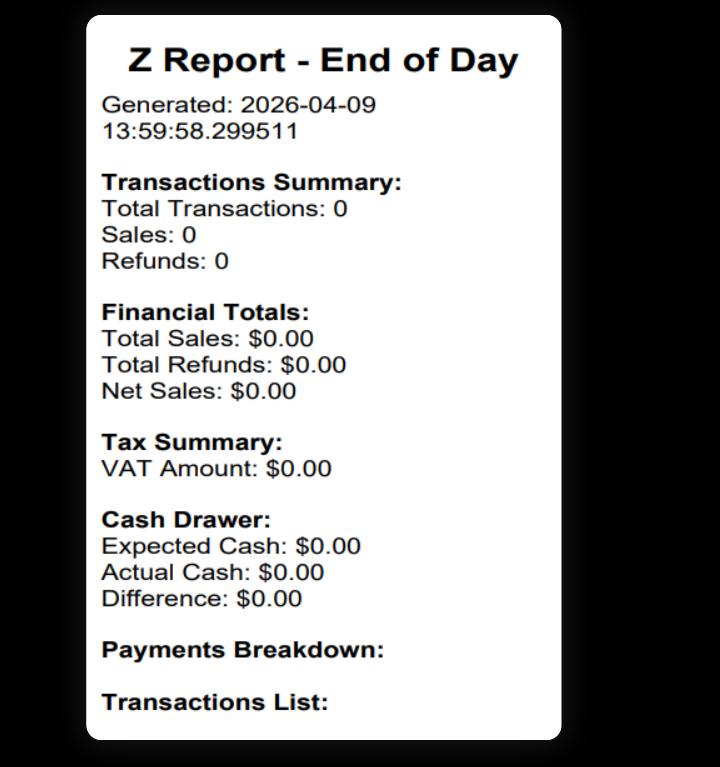
9️⃣ Z Report Receipt
👉 Printed/exported summary of the day including transactions, totals, VAT, and cash differences.
3.11 Log Dashboard
Log Dashboard is used to review app activity logs and help staff understand what happened during a session.
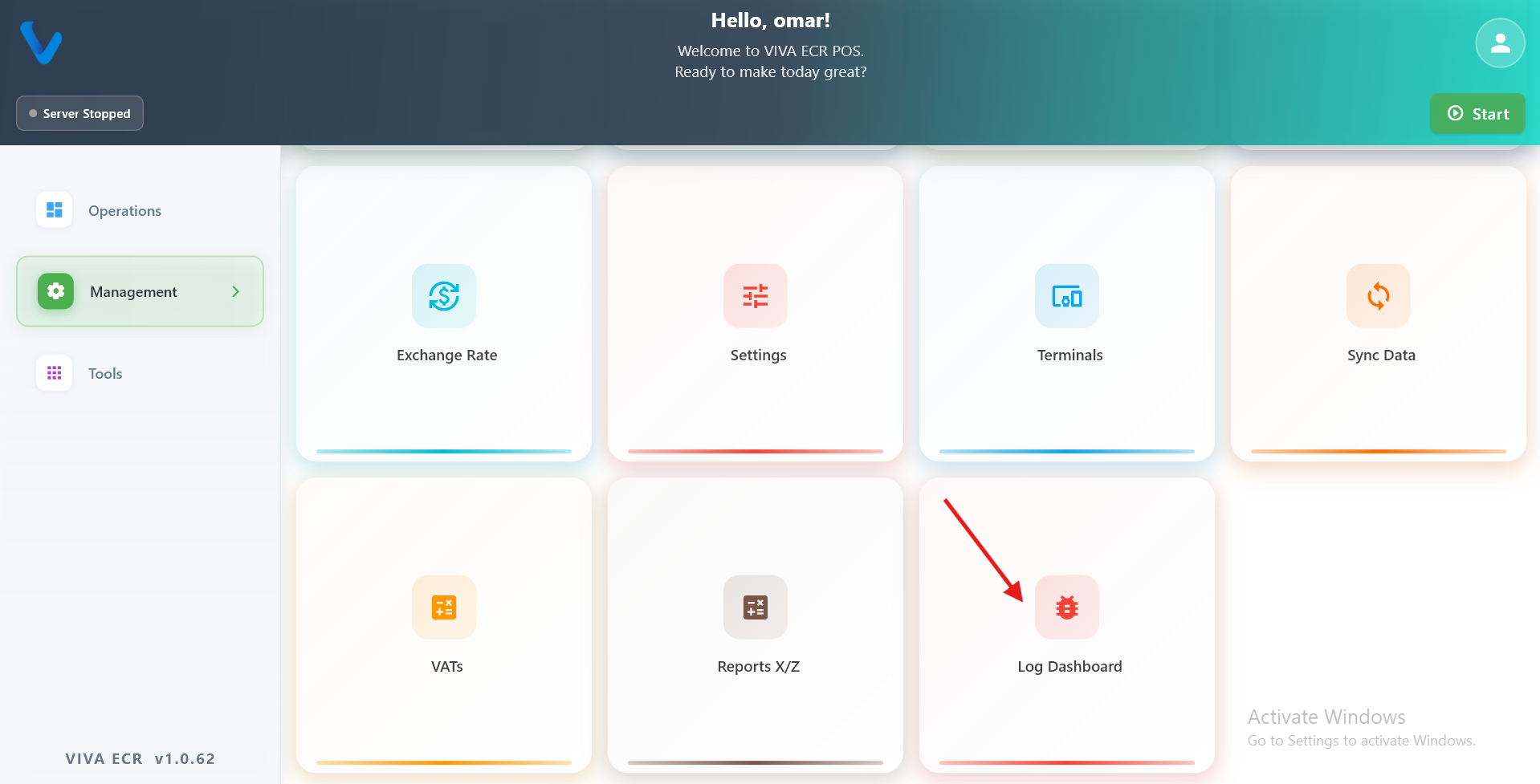
What you can do:
- Search log entries
- Filter by level and tag
- Export logs when needed